
How to Embed a YouTube Channel on Your Website (Free, No Code)
Last updated: August 2026
This walks through the video above step by step. The result: any YouTube channel’s videos, rendered as a swipeable card grid where each card flips over to reveal a playable video on the back — no code, and no need to touch the YouTube API.
Step 1 — Find your YouTube channel’s video feed URL
Every YouTube channel exposes a free RSS feed of its videos. For a channel identified by a username, the feed follows this pattern:
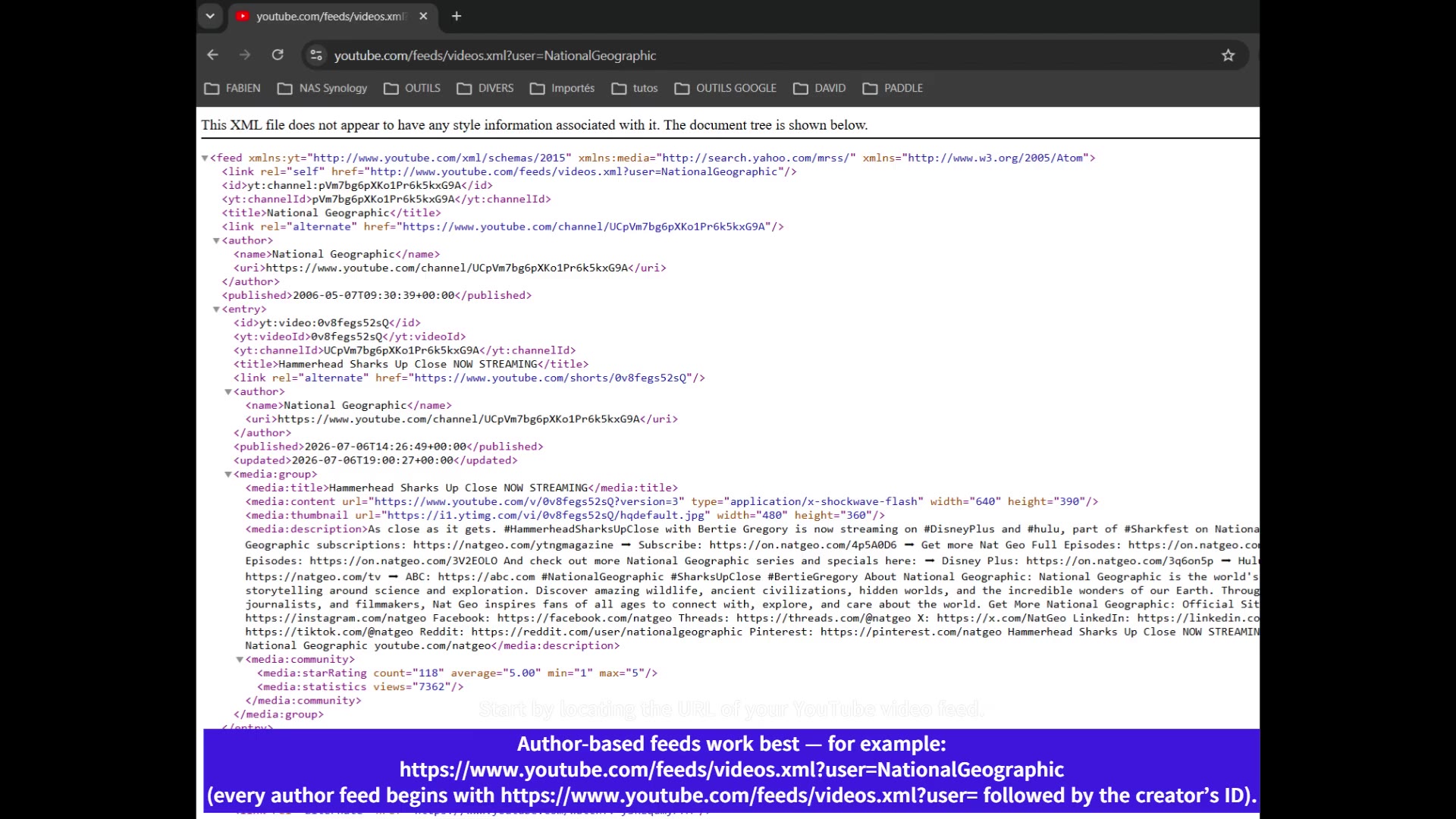
An author-based feed URL: https://www.youtube.com/feeds/videos.xml?user=CHANNELNAME
ℹ️ If your channel only has a modern @handle (no classic username), use the channel ID form instead: https://www.youtube.com/feeds/videos.xml?channel_id=UC.... You can find the channel ID in the page source of the channel’s YouTube page, or with any free «YouTube channel ID lookup» tool.
Embed a YouTube playlist instead of a channel
The same works for a single playlist. Use the playlist feed instead: https://www.youtube.com/feeds/videos.xml?playlist_id=PL.... You’ll find the playlist ID in the playlist’s URL, right after list=.
Step 2 — Add a Swiffle Grid block
On the page where you want the grid to appear (Gutenberg or Elementor both work the same way), add a new Swiffle Grid block.
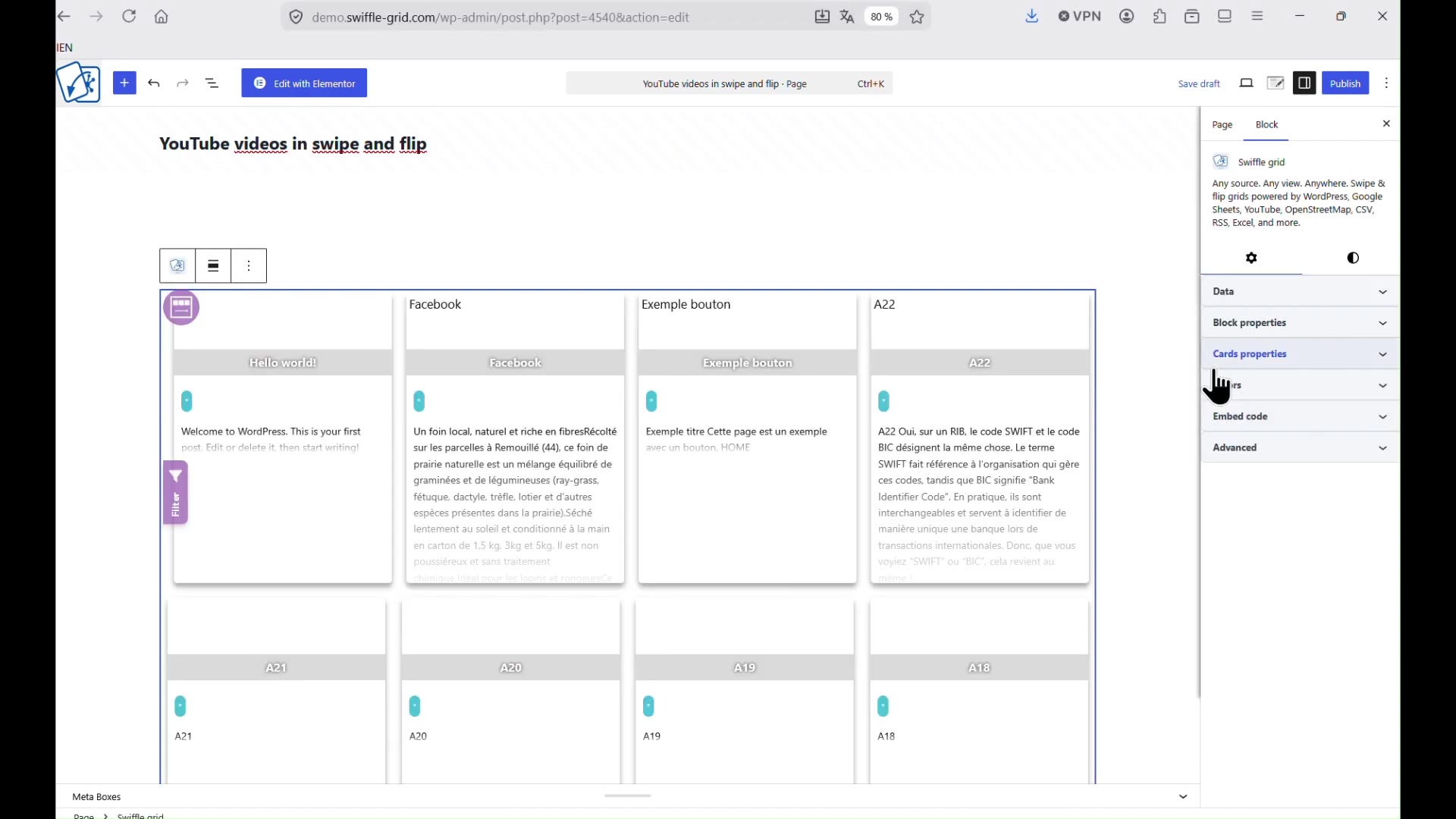
A fresh Swiffle Grid block, ready to be configured.
Step 3 — Select RSS as the source and paste your feed URL
In the block’s Data source dropdown, choose RSS, then paste the feed URL from Step 1 into the URL field. The grid updates immediately with the channel’s actual videos.
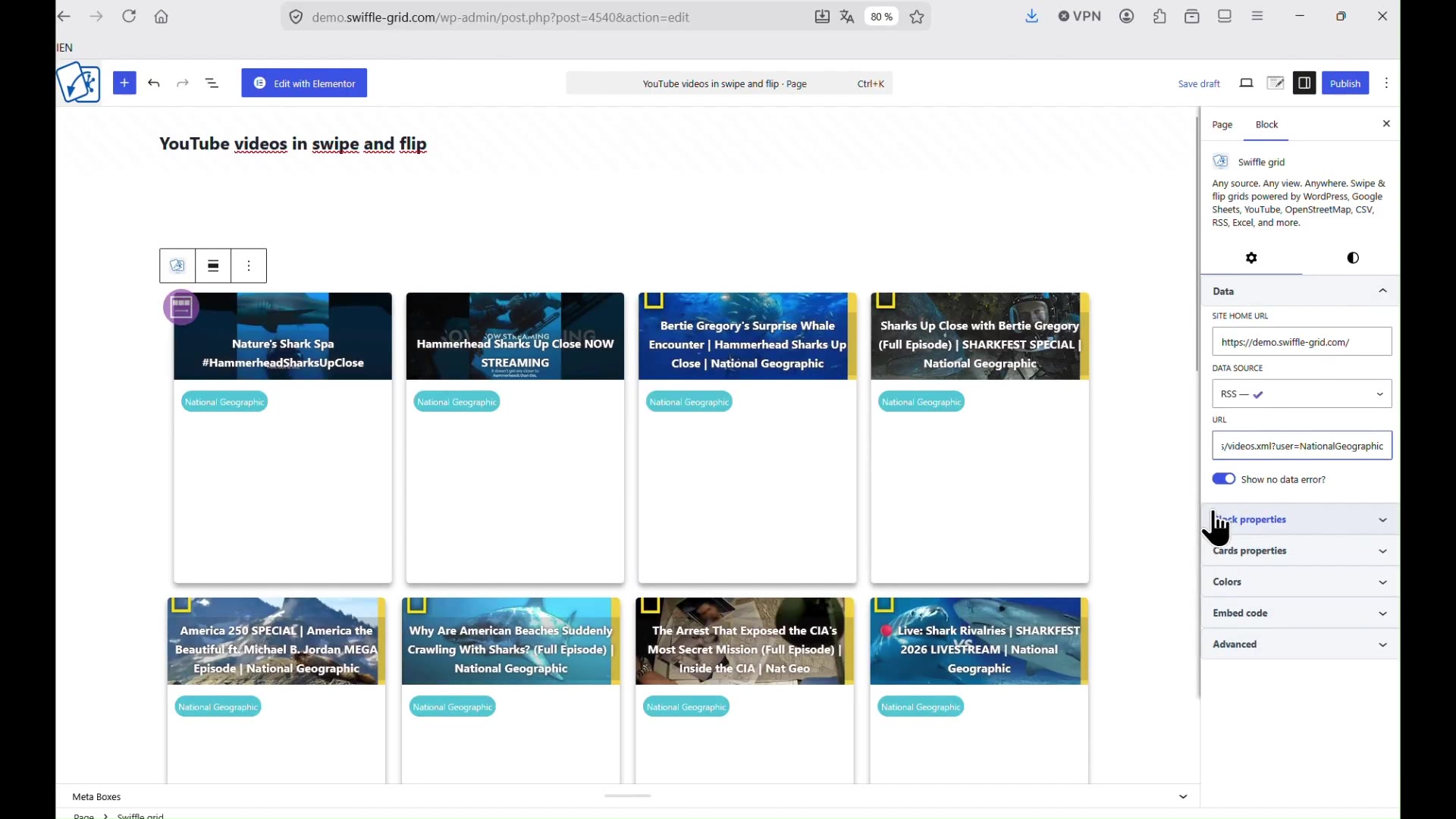
RSS selected as the source, feed URL pasted, videos loading live.
Step 4 — Adjust the layout
Use the card properties panel to set the card width, height, gap, and corner radius to match your site’s design — the grid re-flows live as you adjust each value.
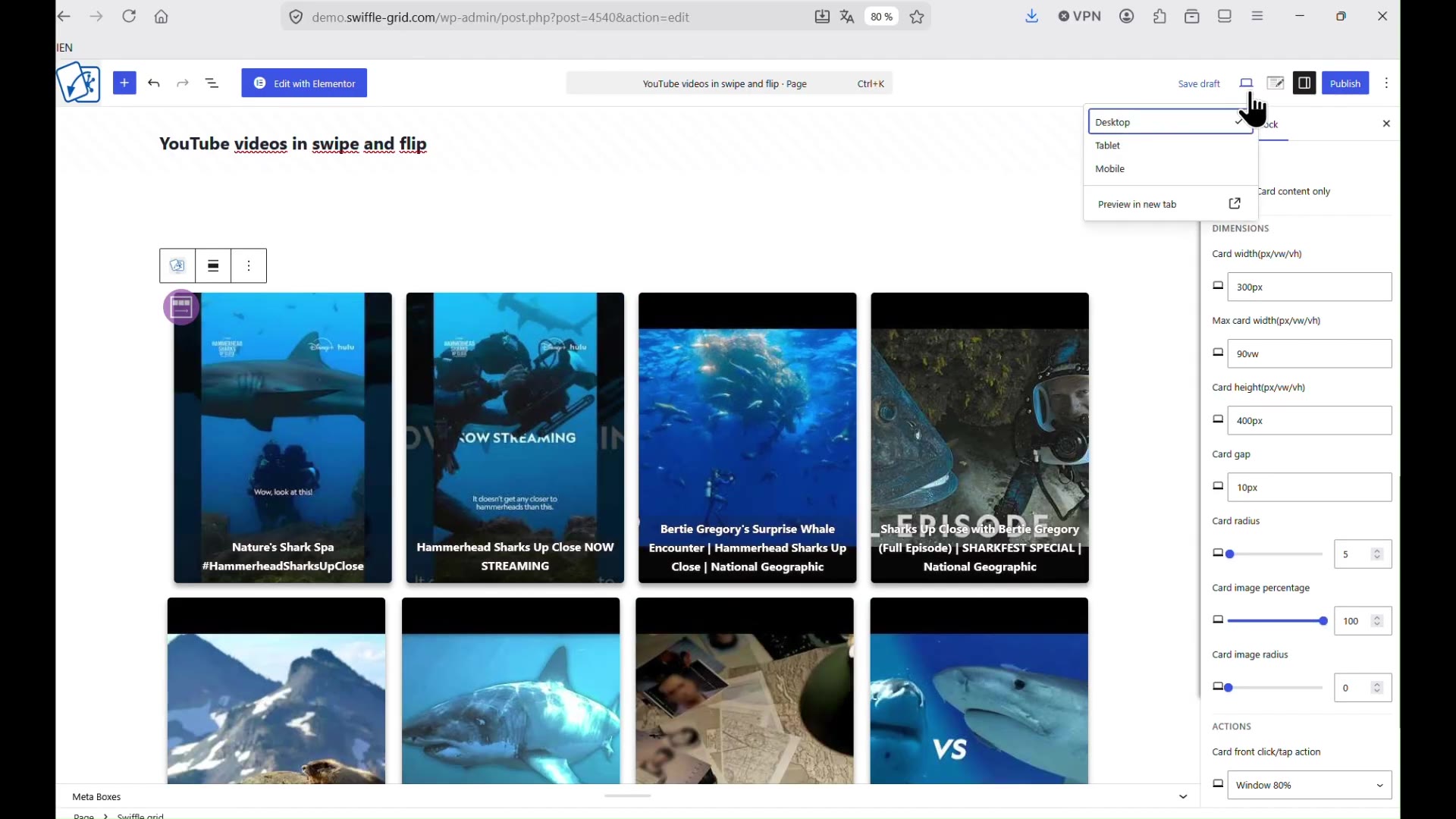
Card dimension settings in the block sidebar.
Result
Your YouTube channel is now rendered as a swipe-and-flip video grid: tap or click a card to flip it, and its back plays the video right there, embedded — no redirect to YouTube needed.

A flipped card, playing its video inline, on mobile.
Because the grid reads the channel’s RSS feed, it works as a self-updating YouTube feed for WordPress: every new upload shows up in your video gallery automatically, with no need to edit the page. YouTube’s feed lists the latest 15 videos. Videos whose owner has disabled embedding can’t play inline; YouTube blocks them, not the plugin.
Try it live
Here is the YouTube channel grid running on a plain HTML page (CodePen), loaded from a WordPress demo site. Change the settings, then copy the embed code. Open it on CodePen.
Ready to try it on your own site?
Download Swiffle Grid freeNeed WooCommerce, Google Sheets or a custom API? Try PRO free for 14 days, no credit card needed.