
How to Turn a YouTube Channel into a Flip-Card Video Grid
Last updated: August 2026
This walks through the video above step by step. The result: any YouTube channel’s videos, rendered as a swipeable card grid where each card flips over to reveal a playable video on the back — no code, and no need to touch the YouTube API.
Step 1 — Find your YouTube channel’s video feed URL
Every YouTube channel exposes a free RSS feed of its videos. For a channel identified by a username, the feed follows this pattern:
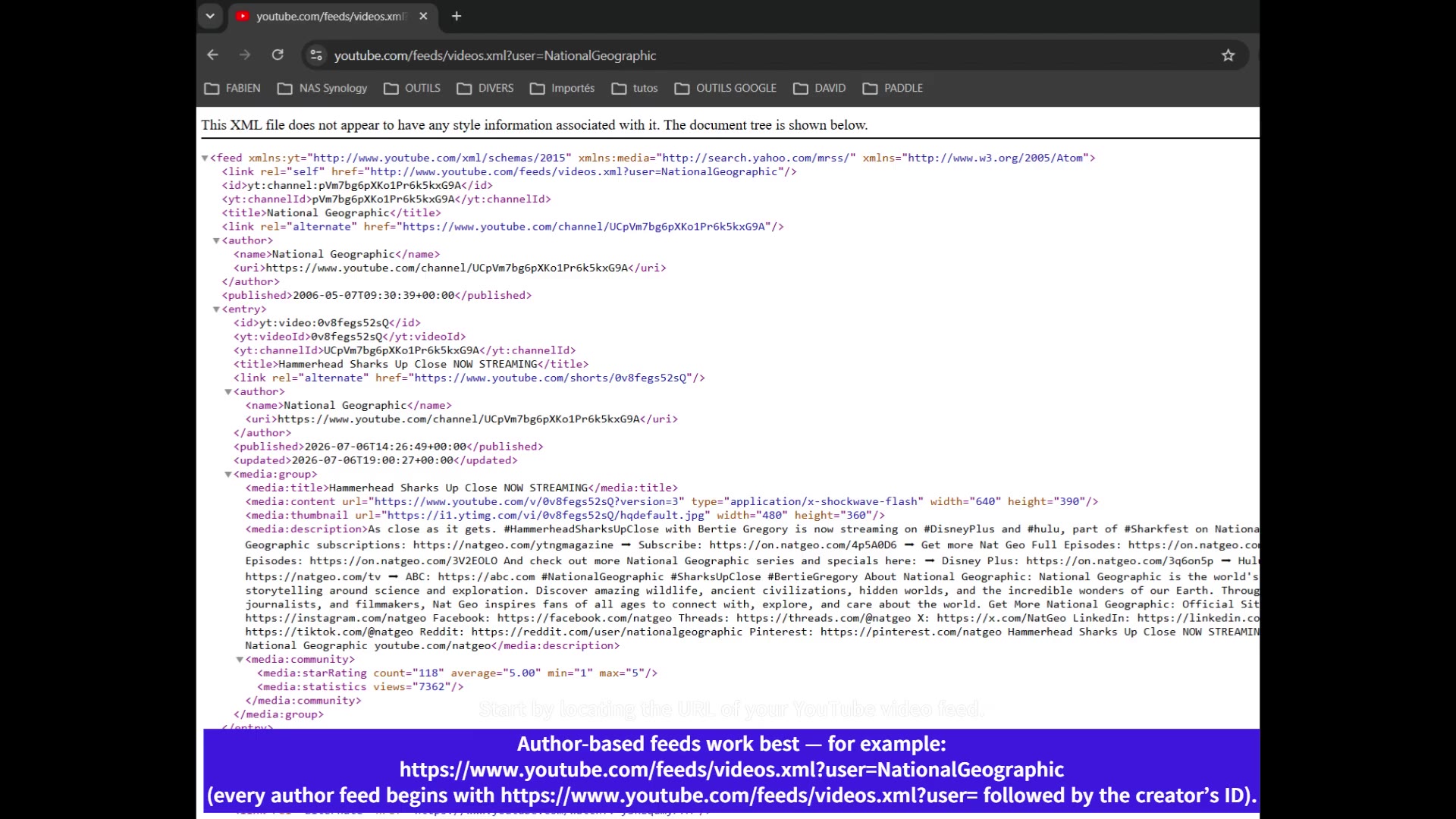
An author-based feed URL: https://www.youtube.com/feeds/videos.xml?user=CHANNELNAME
ℹ️ If your channel only has a modern @handle (no classic username), use the channel ID form instead: https://www.youtube.com/feeds/videos.xml?channel_id=UC.... You can find the channel ID in the page source of the channel’s YouTube page, or with any free „YouTube channel ID lookup” tool.
Step 2 — Add a Swiffle Grid block
On the page where you want the grid to appear (Gutenberg or Elementor both work the same way), add a new Swiffle Grid block.
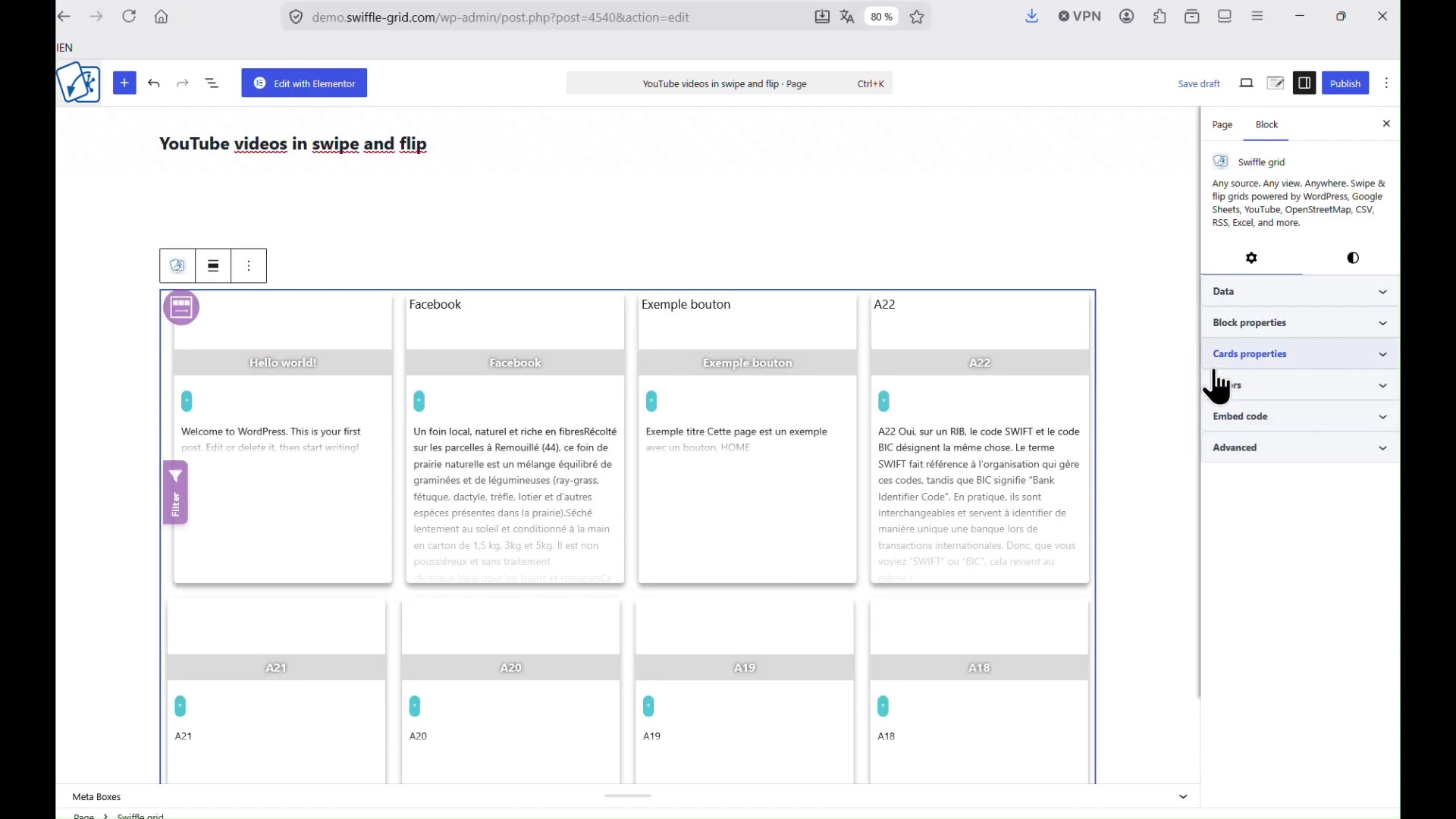
A fresh Swiffle Grid block, ready to be configured.
Step 3 — Select RSS as the source and paste your feed URL
In the block’s Data source dropdown, choose RSS, then paste the feed URL from Step 1 into the URL field. The grid updates immediately with the channel’s actual videos.
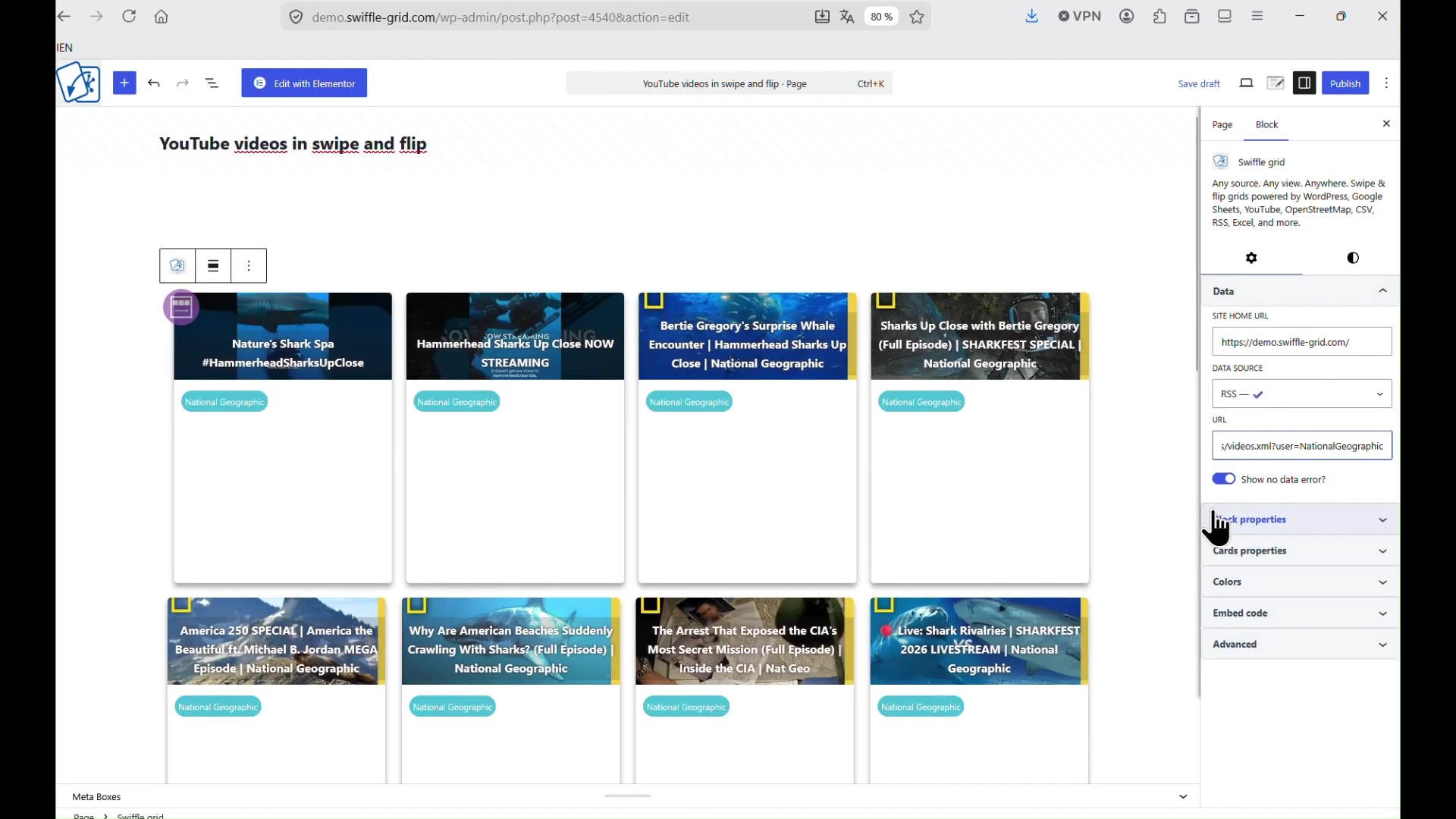
RSS selected as the source, feed URL pasted, videos loading live.
Step 4 — Adjust the layout
Use the card properties panel to set the card width, height, gap, and corner radius to match your site’s design — the grid re-flows live as you adjust each value.
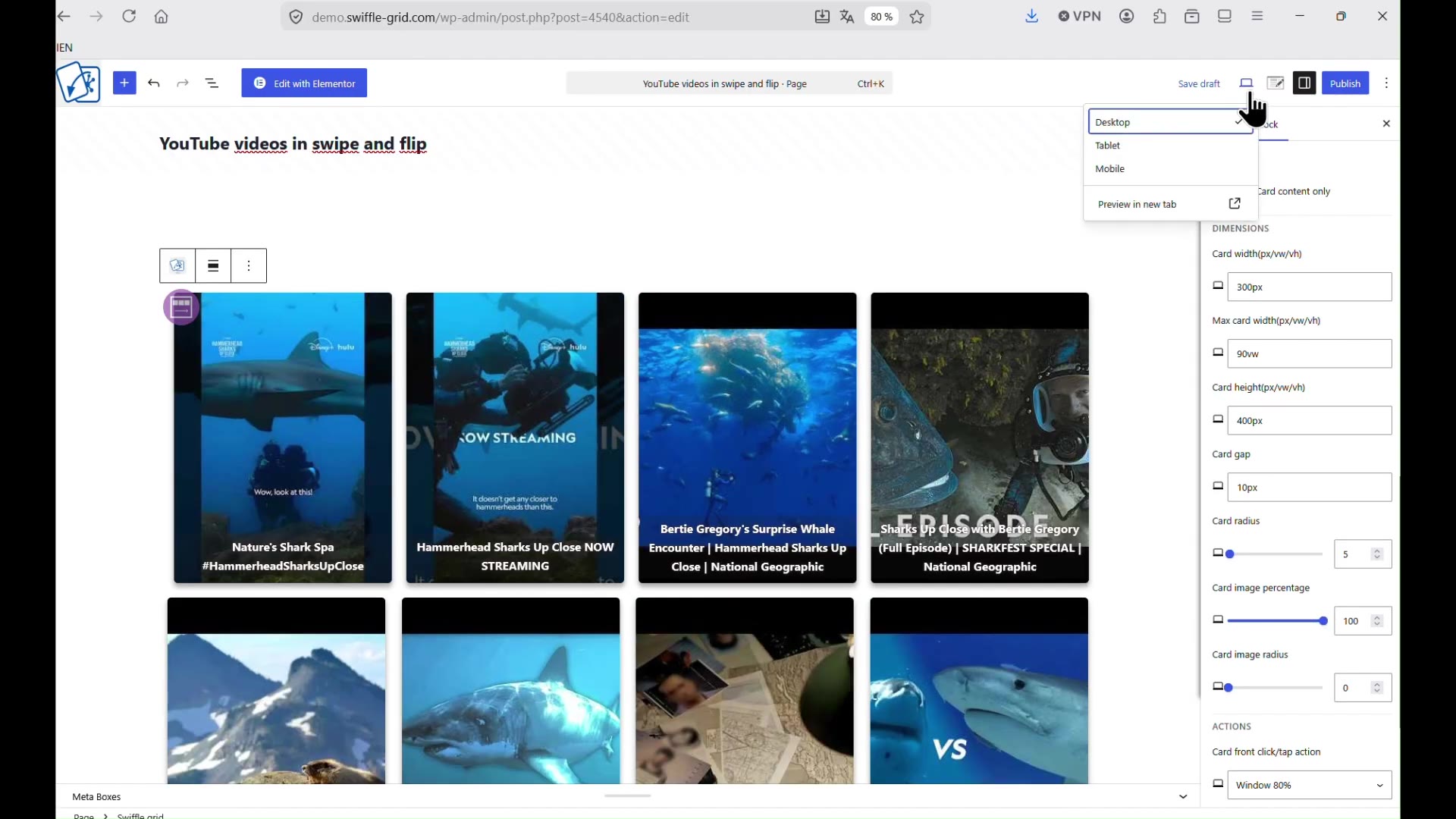
Card dimension settings in the block sidebar.
Result
Your YouTube channel is now rendered as a swipe-and-flip video grid: tap or click a card to flip it, and its back plays the video right there, embedded — no redirect to YouTube needed.
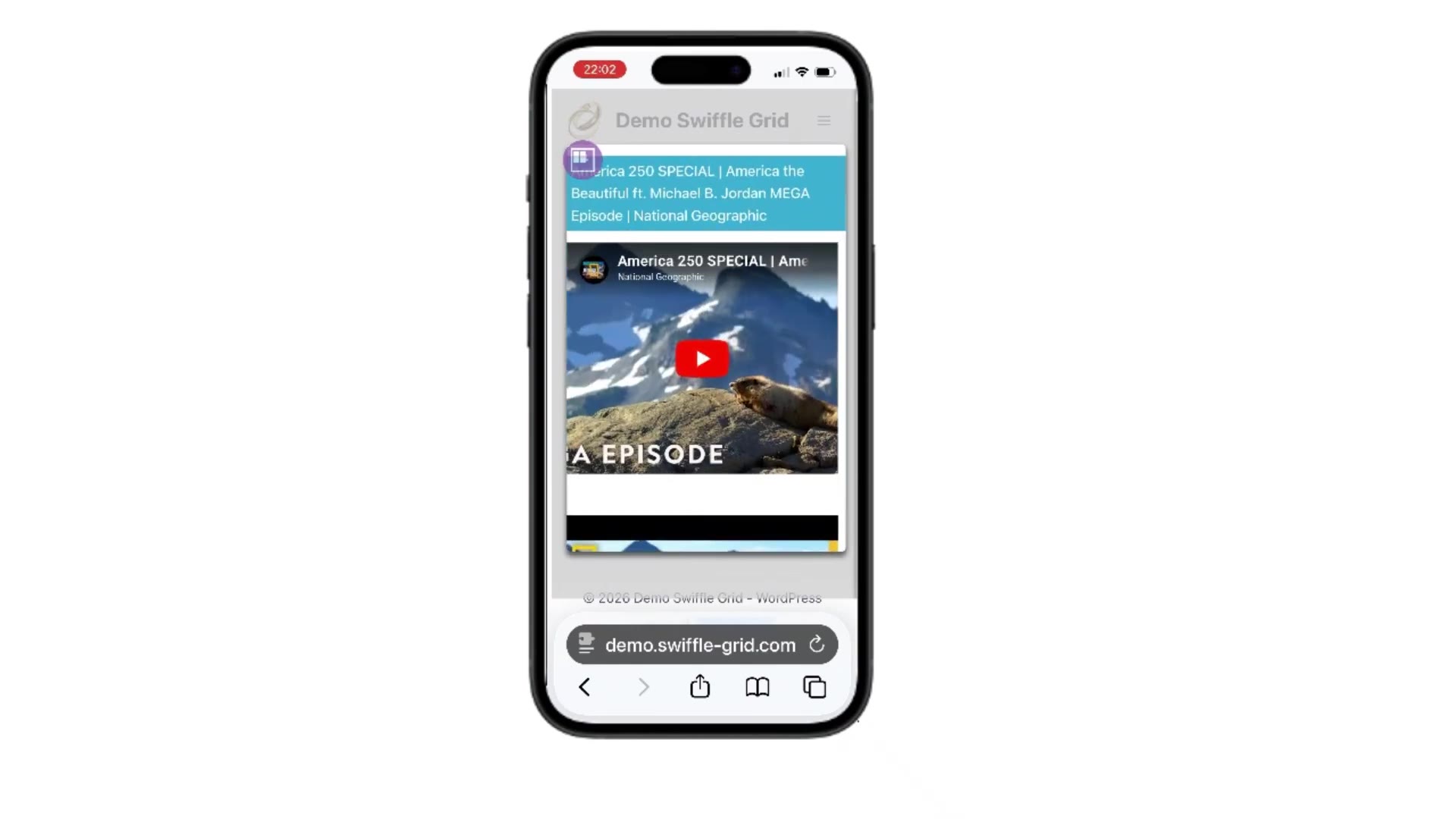
A flipped card, playing its video inline, on mobile.