
How to Show a Live Google Sheet on Any Website
Last updated: August 2026
This walks through the video above step by step, with a screenshot for each stage. The result: a Google Sheet rendered as a live, styled grid on any site — even one that isn’t built with WordPress — with no CORS errors and no server-side code. Edit a cell back in the sheet, and the embedded grid picks up the change automatically.
Step 1 — Publish the Google Sheet as CSV
In your Google Sheet, open File → Share → Publish to web. Pick the specific tab (not the entire spreadsheet), switch the format dropdown to Comma-separated values (.csv), then copy the generated URL — you’ll paste it into Swiffle Grid in the next step.
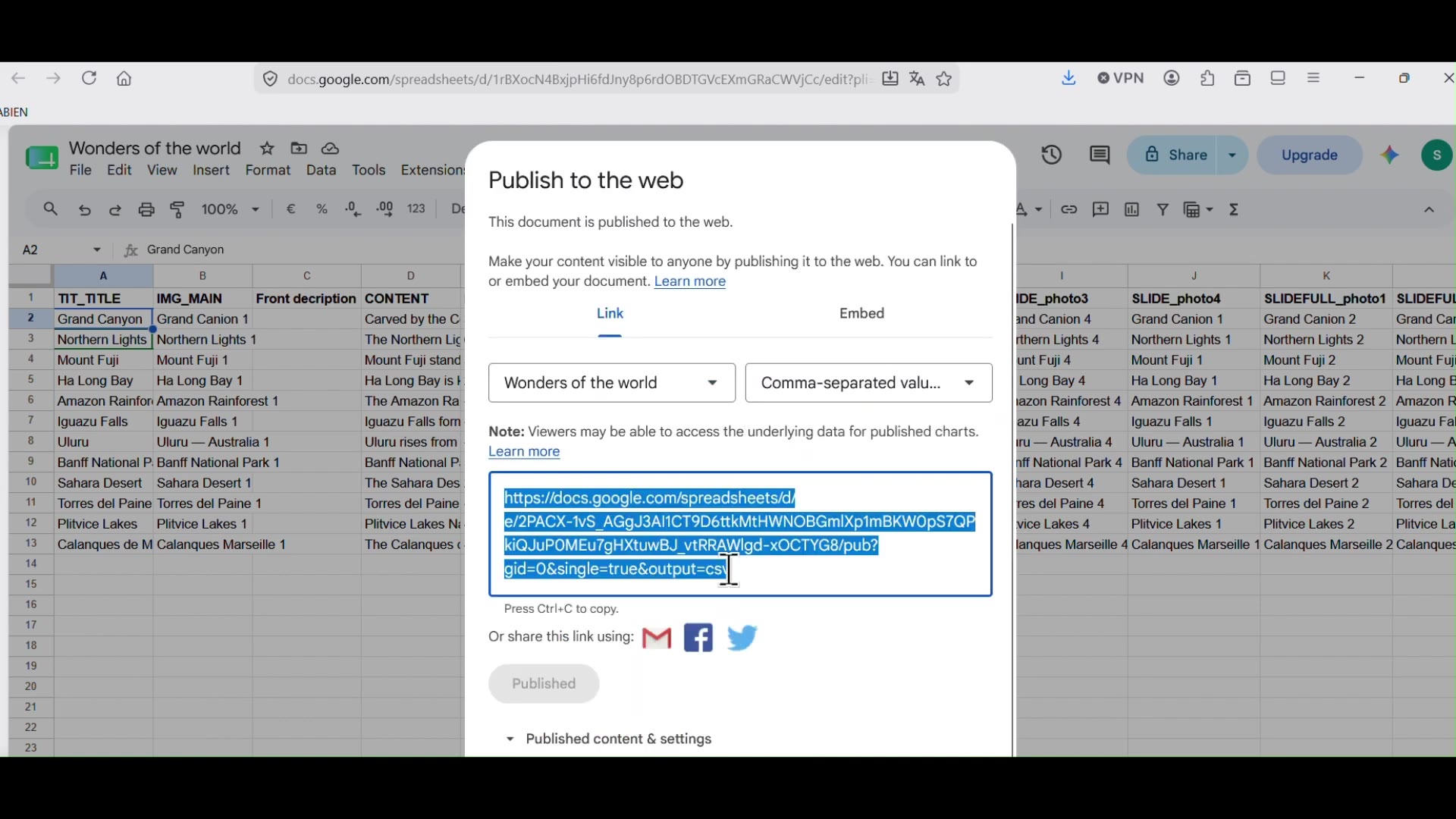
Publish to the web, format set to CSV, URL ready to copy.
Step 2 — Add a Swiffle Grid block and paste the CSV URL
Add a new Swiffle Grid block to a page (Gutenberg or Elementor both work the same way). In the block’s Data source dropdown, select CSV, paste the URL you just copied into the URL field, then adjust the layout to your liking.
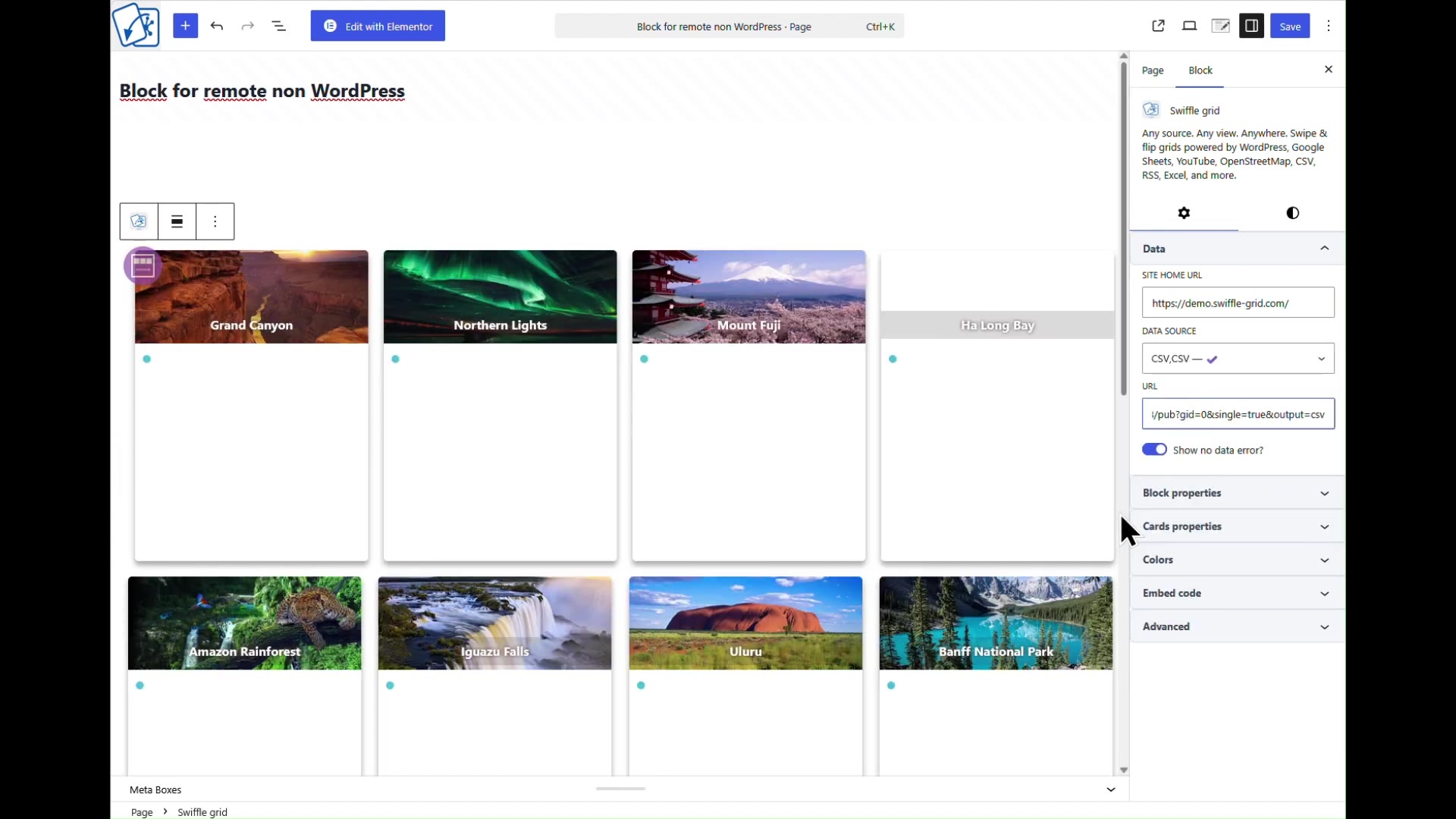
Data source set to CSV, with the sheet’s published URL pasted in.
Step 3 — Copy the embed code
Open the block’s Embed code tab and click Copy the code. This generates a self-contained HTML snippet for the grid you just configured.
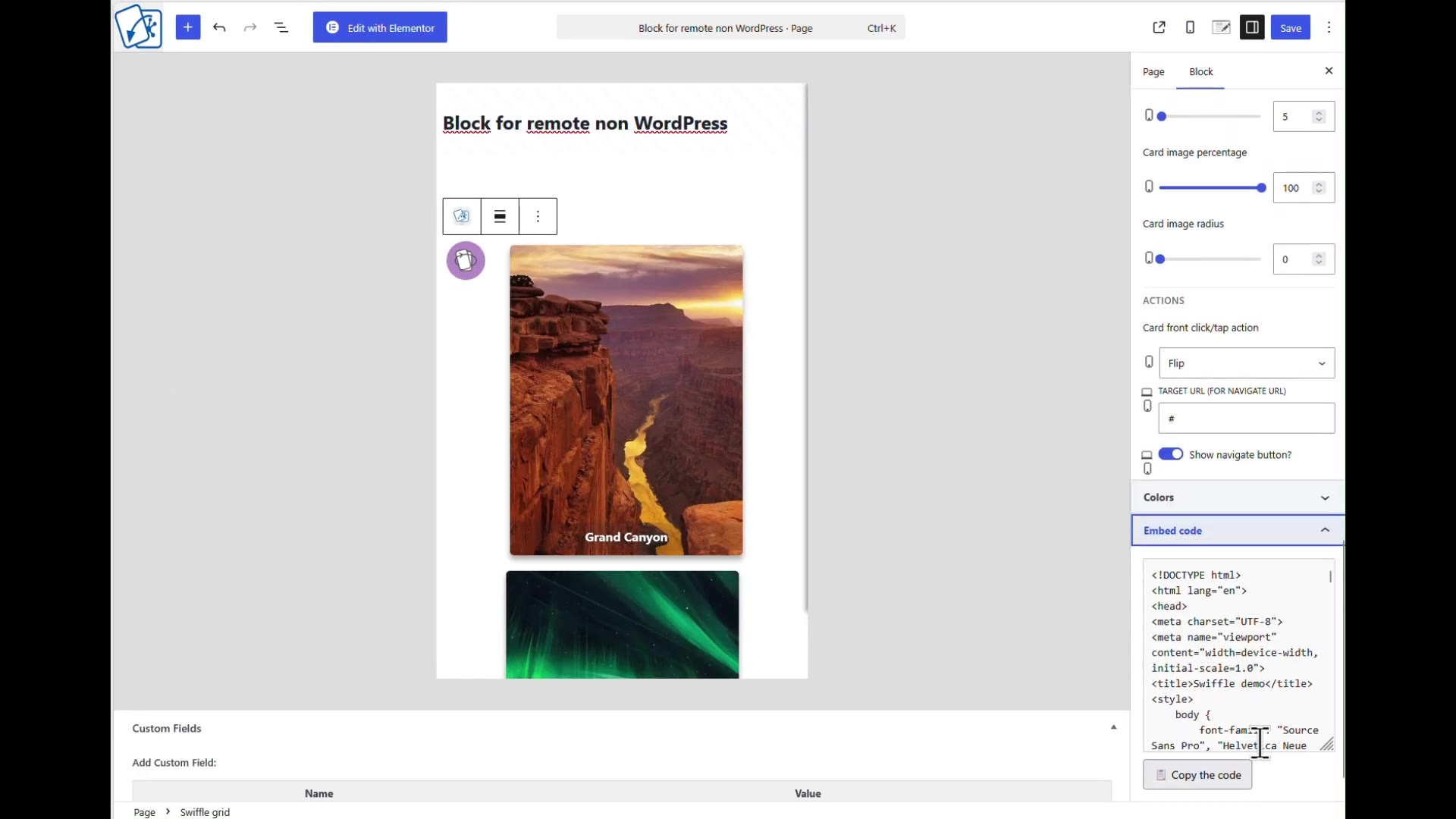
The Embed code tab, ready to copy.
Step 4 — Paste it into your non-WordPress site
Paste the copied code into a page on your external site and save. You can add more surrounding HTML — a title, extra copy, your own layout — around the snippet if needed.
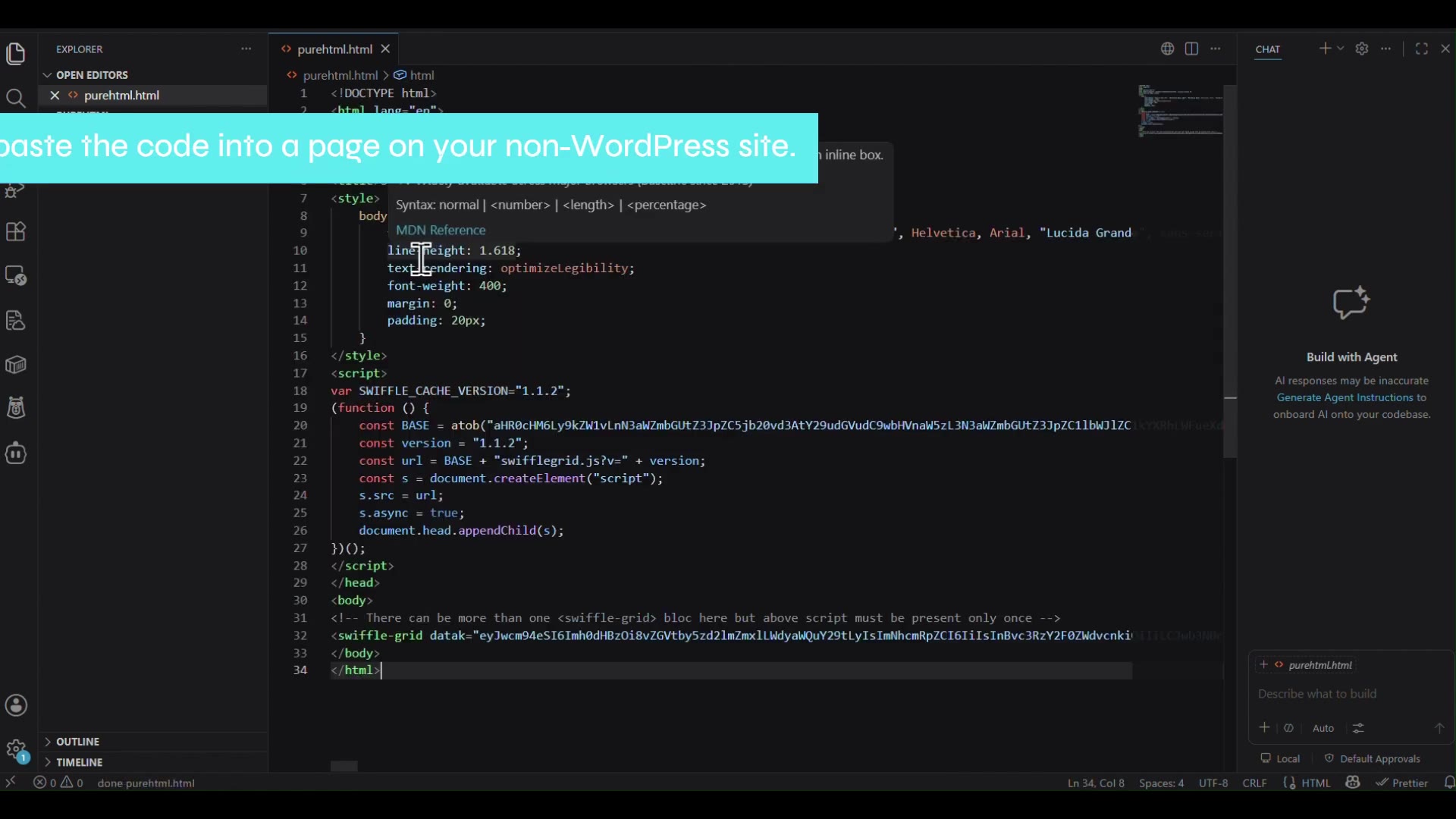
The embed code pasted into a plain HTML page.
Step 5 — Allow the remote URL
Back in the WordPress admin, open the Swiffle Grid settings and add your external site’s URL under URLs allowed to embed. Without this, the remote embed is refused by the server.
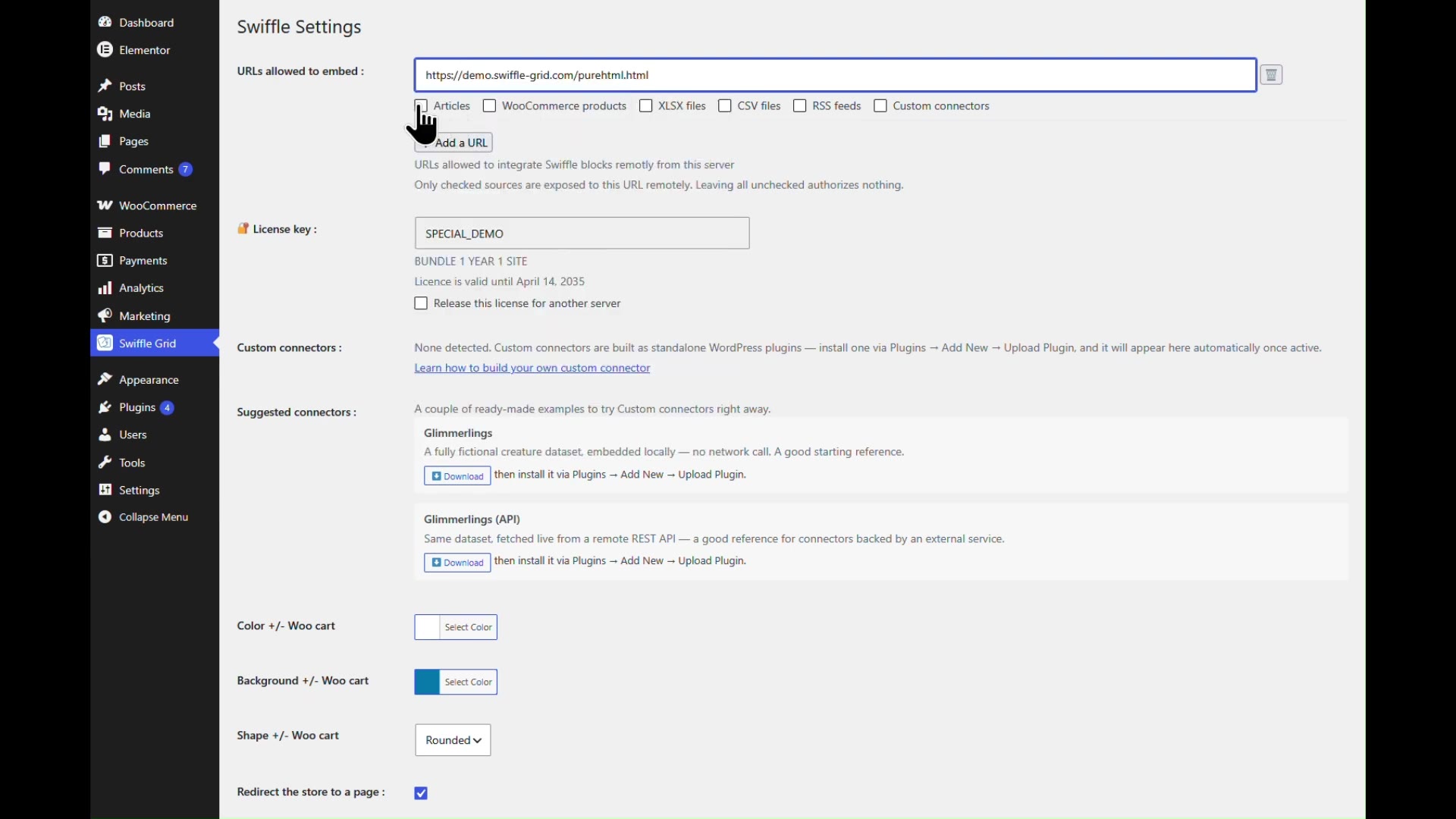
Adding the external site’s URL to the allow list.
ℹ️ The Google Sheets connector requires a paid plan — Store, Connect, or Bundle. External embed sites are unlimited on every plan, including Free. See Plans for details.
Result
Your Google Sheet is now live on your non-WordPress site, styled as a Swiffle Grid — no CORS errors, no code. Edit a cell back in the sheet, and the change appears in the grid automatically.

The finished grid, live on an external site.