
WooCommerce Product Filter: Search, Sort & Price Filters Without Code
Last updated: October 2026
This walks through the video above step by step. The result: a product filter above your WooCommerce grid, where visitors search by keyword, sort by price, pick a category or a price range, and the grid updates instantly. No code required.
Step 1: Start with a Swiffle Grid block
Add a Swiffle Grid block to your page and choose WooCommerce as the data source, in the Data panel of the block settings. Your products appear right away as cards.
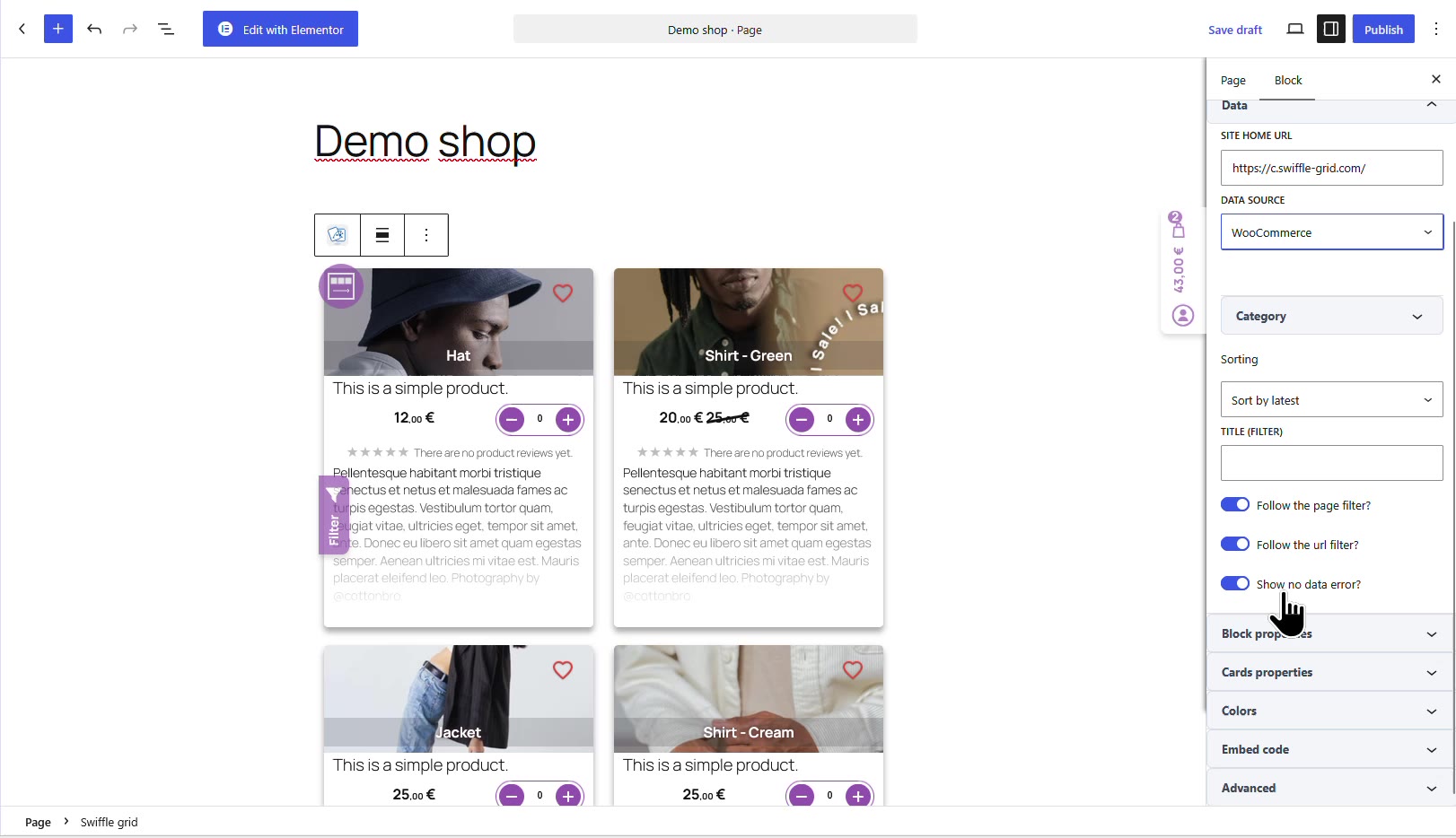
A Swiffle Grid block, with WooCommerce as its data source.
Step 2: Meet the built-in filter
By default, every grid comes with a built-in filter, opened from the Filter tab on the side of the grid. It offers every option at once: keyword search, sorting, wishlist, products on sale, categories and a price range.
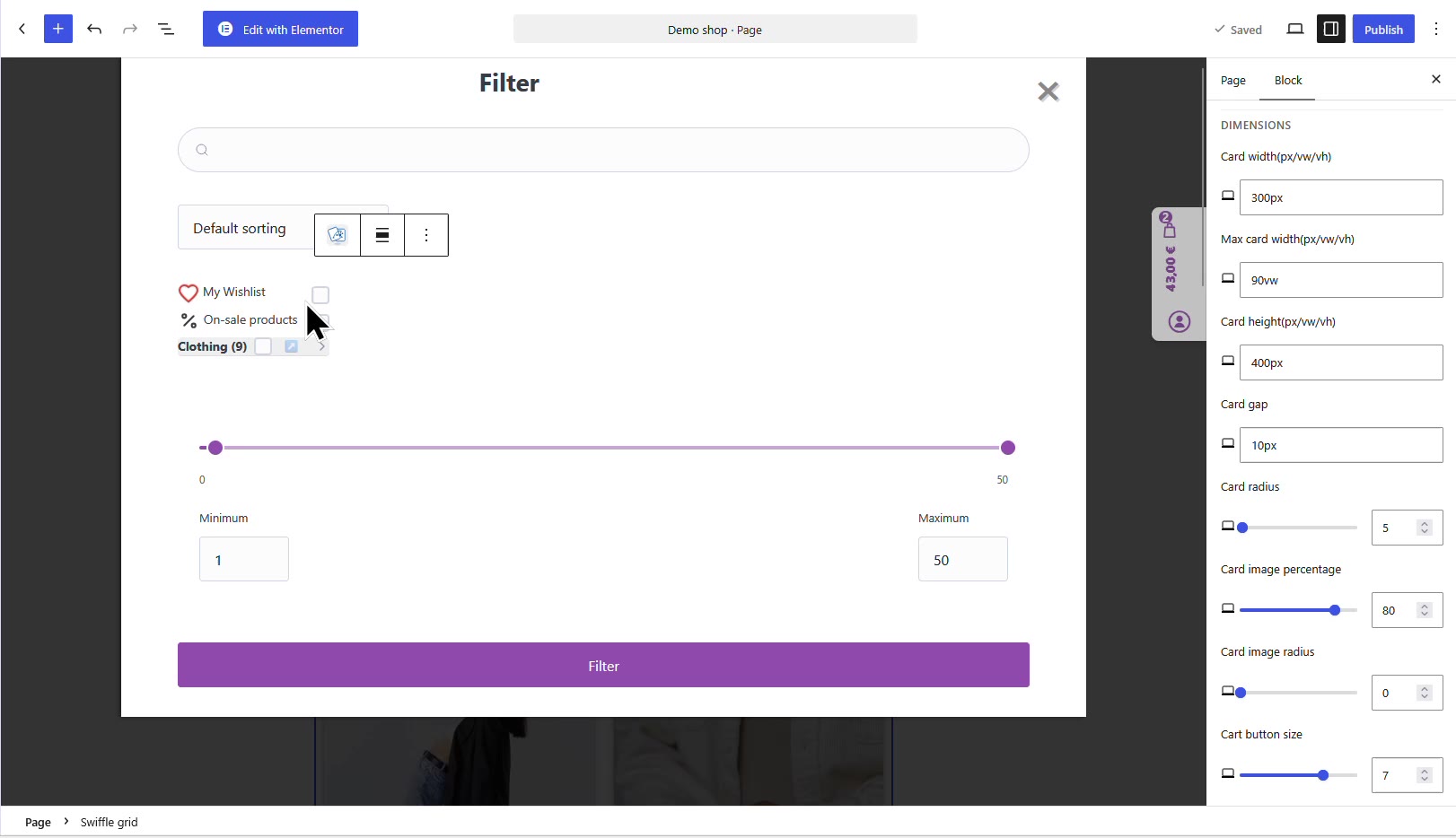
The built-in filter: every option included.
Step 3: Turn the built-in filter off (optional)
The built-in filter is optional. To remove it, open Block properties and switch off “Show filter button?”.
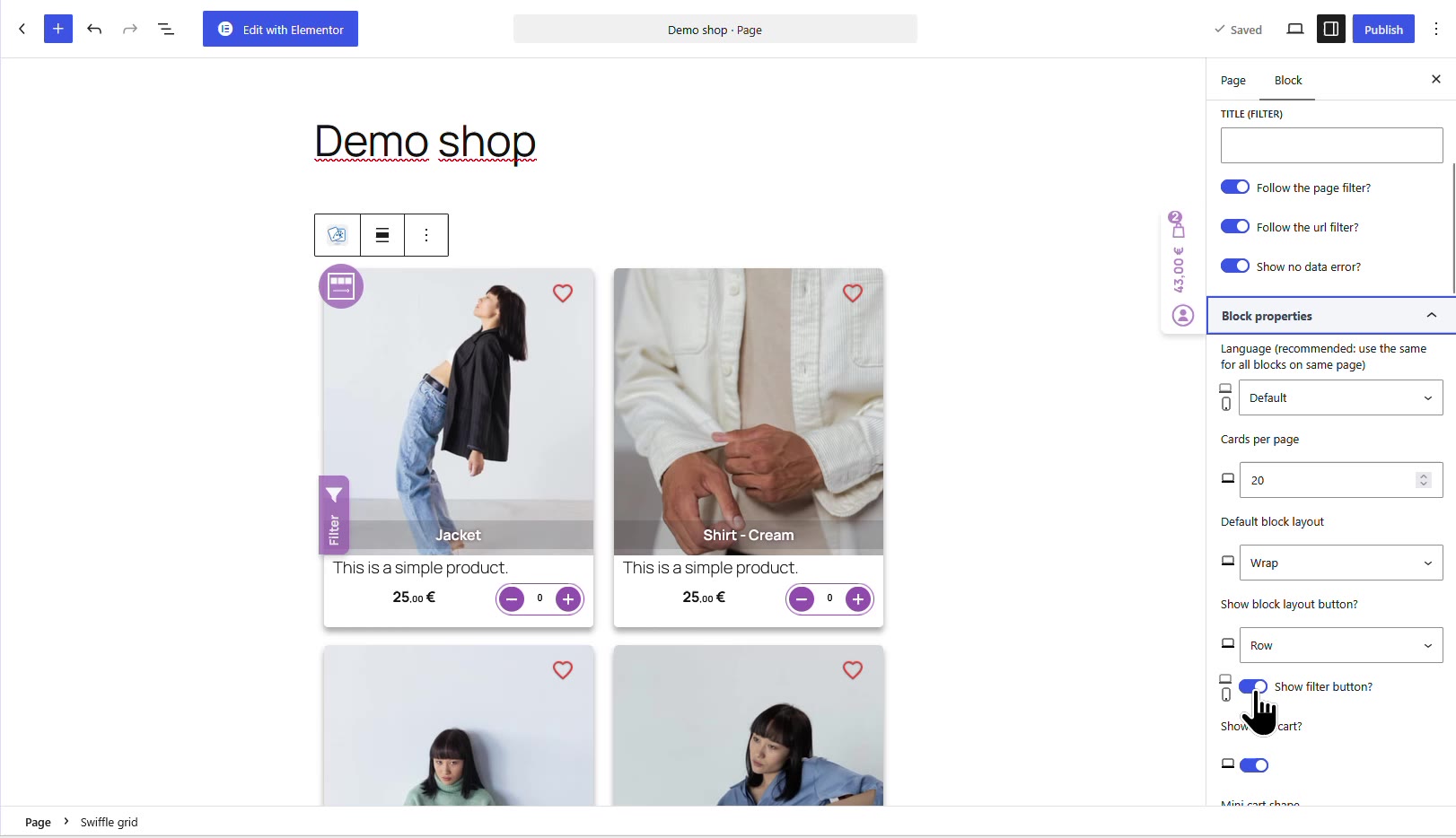
The “Show filter button?” toggle in Block properties.
Step 4: Add the Filters and Sort block
Insert a Swiffle Filters & Sort block above your grid. It controls the grid that follows it on the page.
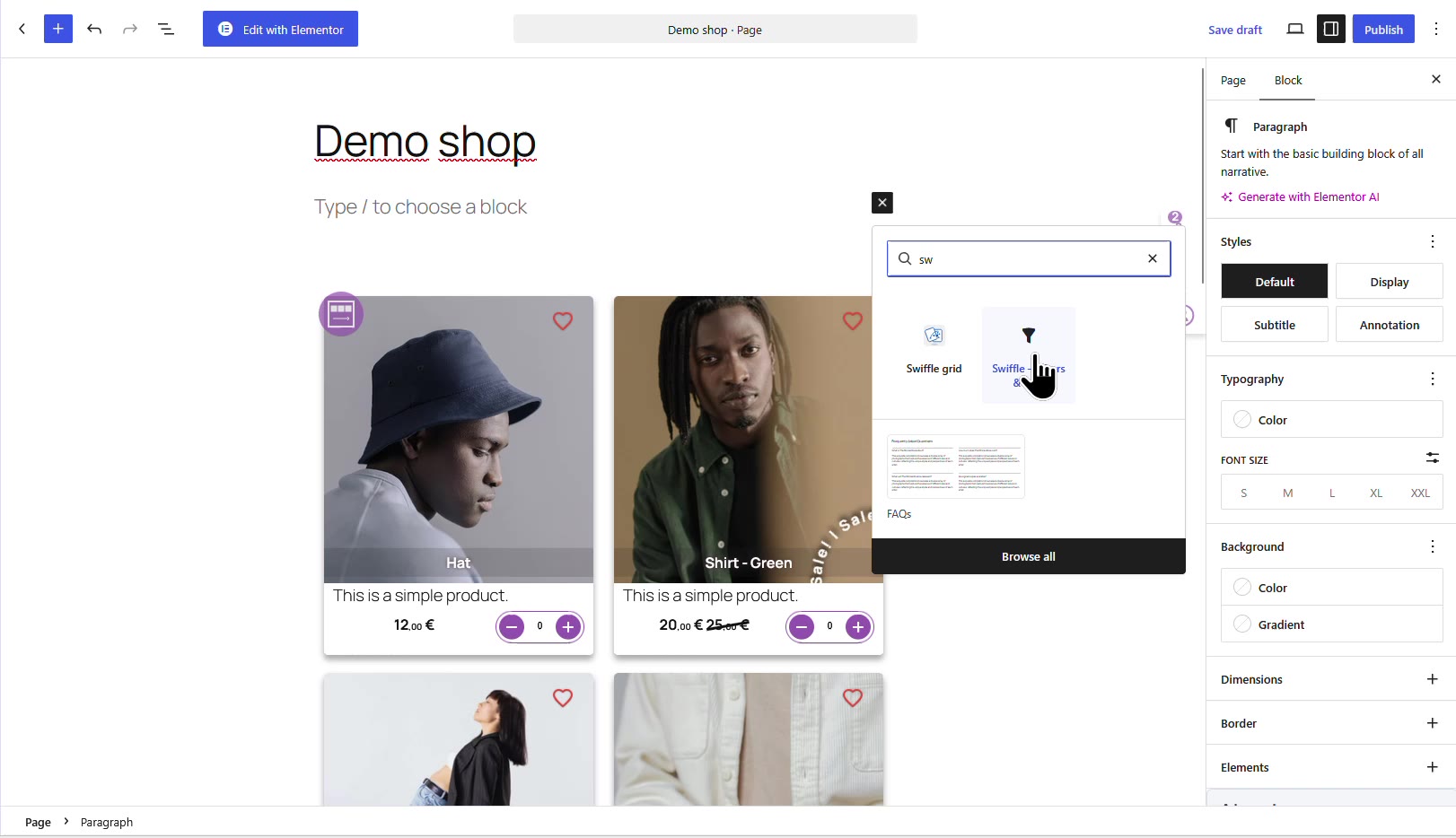
The Filters & Sort block, found by typing “sw” in the block inserter.
ℹ️ Place the Filters & Sort block above the grid it should control: it drives the Swiffle Grid that follows it on the page.
Step 5: Choose your filters
In the Filters & Sort settings, choose whether the filter is collapsible, then select the filters to display: search words, sorting, categories and price. In the Category section, pick exactly which categories are listed.
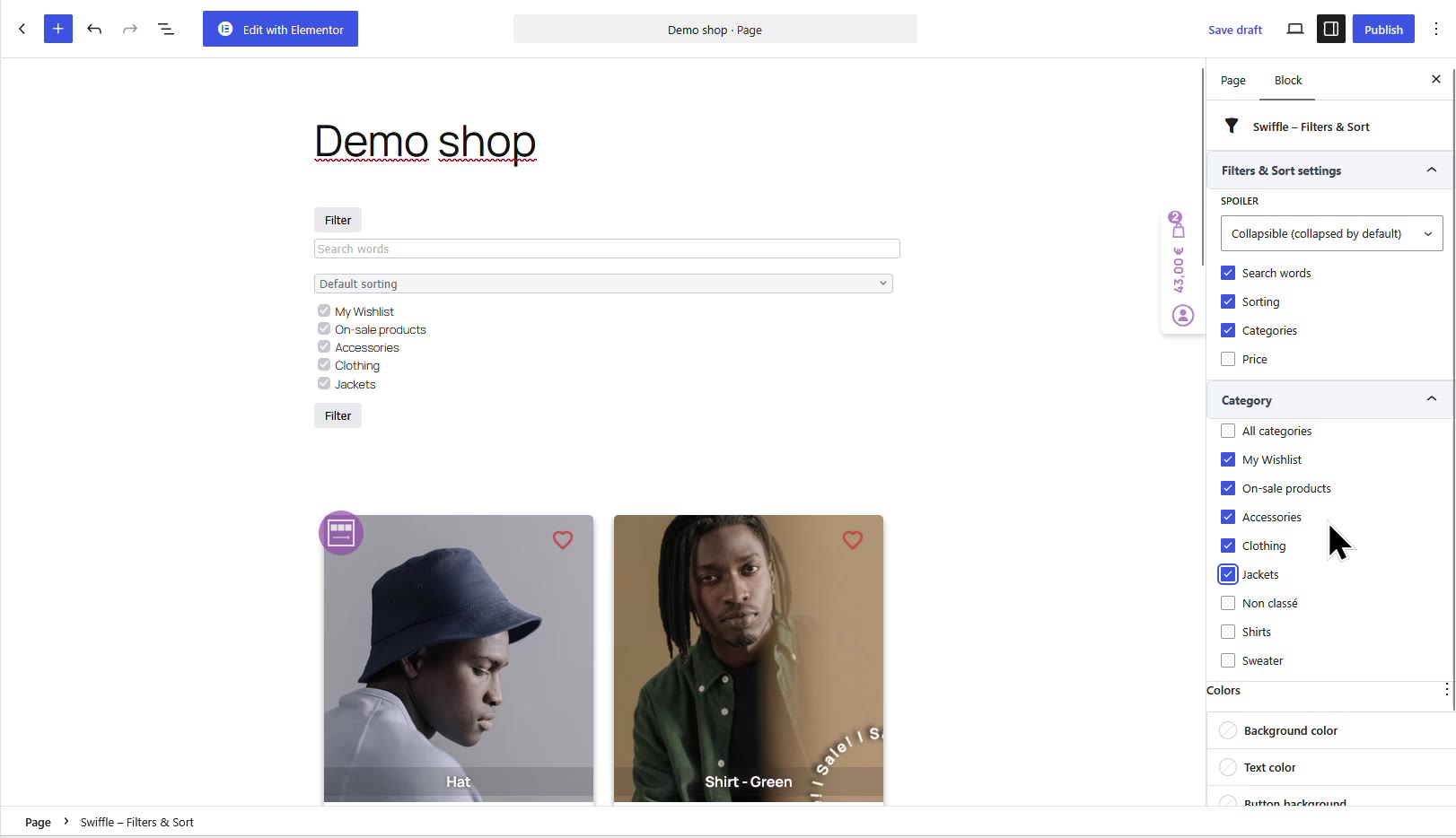
Filters & Sort settings: filters to show and categories to list.
Result
On your page, visitors open the filter, pick a category, and the grid below updates right away. Your visitors can now find the right product in seconds.
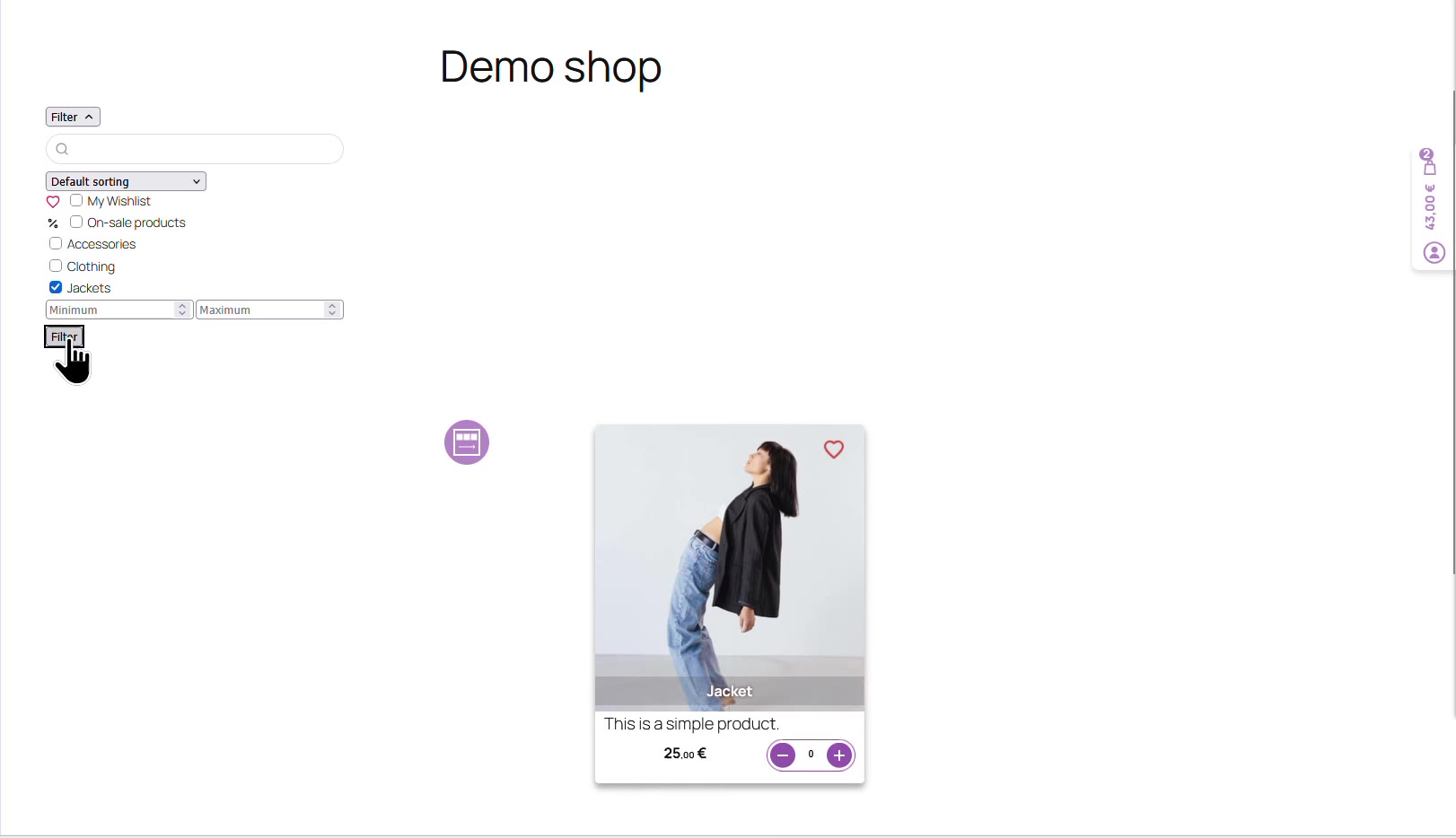
The “Jackets” category is selected: the grid shows only matching products.
For every option of the block, see the Filters and Sort block reference.
Thanks for reading. Check out our channel for more tutorials to help you succeed.