
WordPress Post Grid with Flip Cards (Free, No Code)
Last updated: October 2026
This walks through the video above step by step. The result: your WordPress posts displayed as a grid of flip cards, with a layout button for visitors, swipe on phones, and the whole post (text, video, photo gallery and map) on the back of each card. Free, no code required.
Step 1: Add the Swiffle Grid block
Create a page (or open an existing one) and add the Swiffle Grid block. With WordPress as the data source, in the Data panel of the block settings, your posts show up right away as cards.
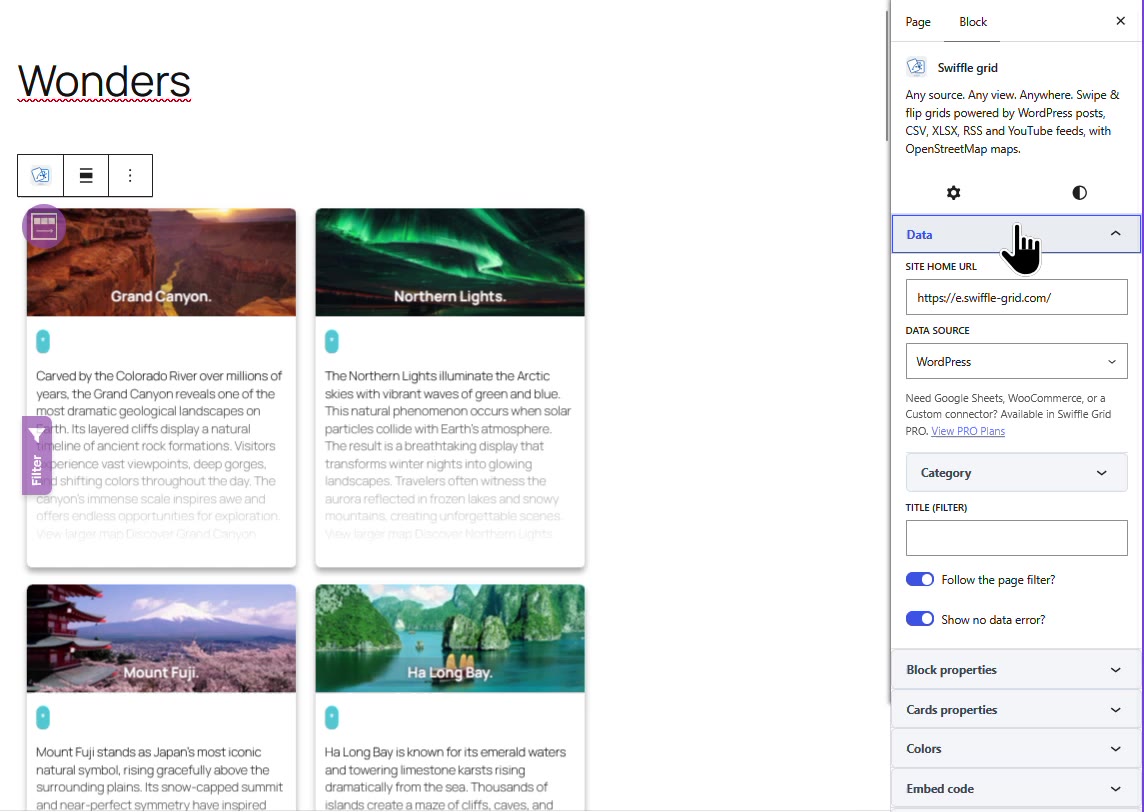
The Swiffle Grid block, with your posts as cards.
Step 2: Show the posts of one category
In the Data panel, open Category and tick the categories to display. Here, only the “Wonder Posts” category is shown.
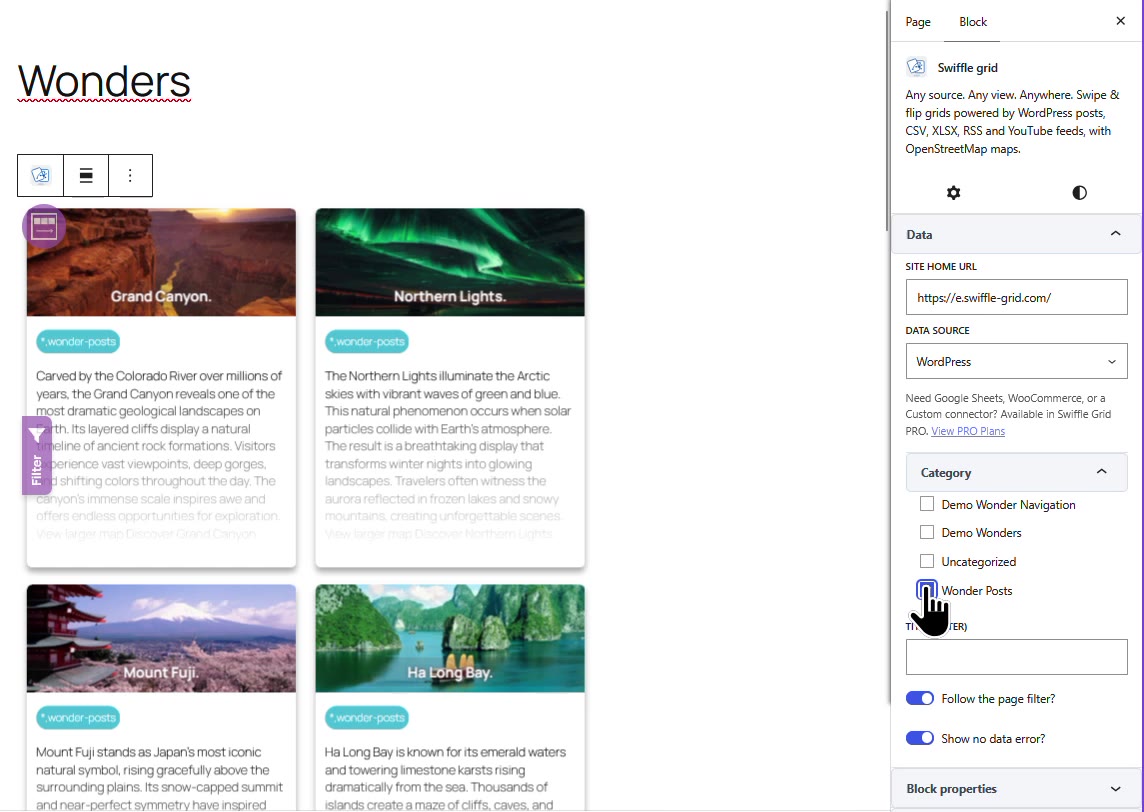
Pick the categories to show in the Data panel.
Step 3: Adjust the cards
Open Cards properties to fine-tune the cards: width, height, gap, radius, and the share of the card taken by the picture with Card image percentage.
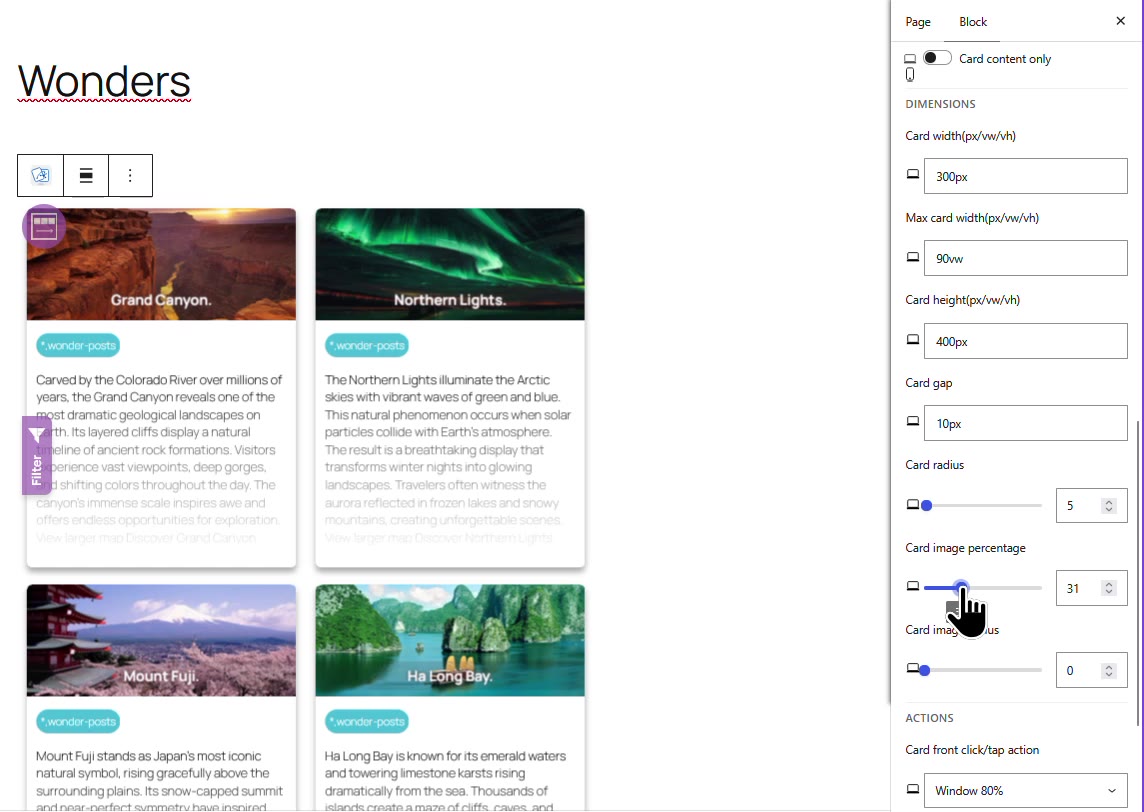
Card image percentage sets the size of the picture on each card.
Step 4: Different settings on phones
Switch the editor preview to Mobile: the settings you change now apply to phones only, so the grid can look different on a phone and on a computer.
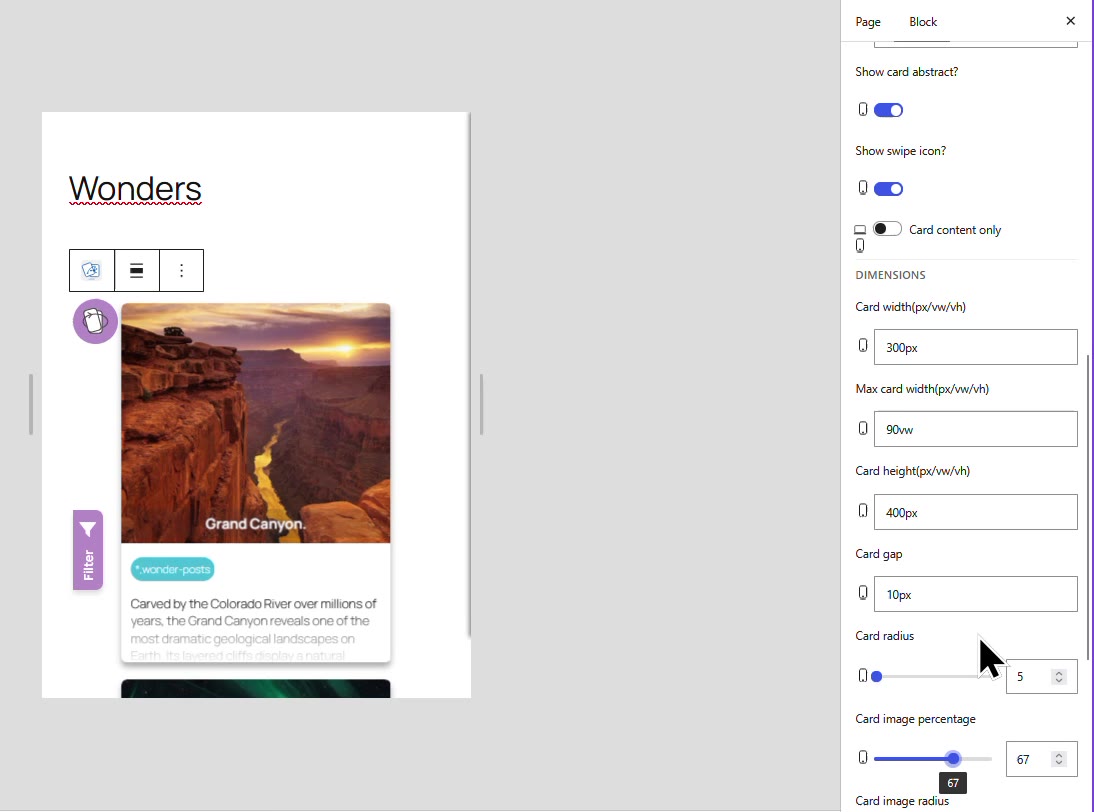
In mobile preview, settings apply to phones.
ℹ️ The small screen icon to the left of a setting shows which version you are editing: computer or phone.
Step 5: Layouts and the layout button
In Block properties, Default block layout sets how the grid opens: Wrap, Swipe, Fixed swipe or Row. Show block layout button? sets the alternative layout visitors can switch to:
- Do not display: no button, the default layout is the only one.
- One layout (Wrap, Swipe, Fixed swipe or Row): the button toggles between the default layout and this one.
- All options: visitors choose among every layout.
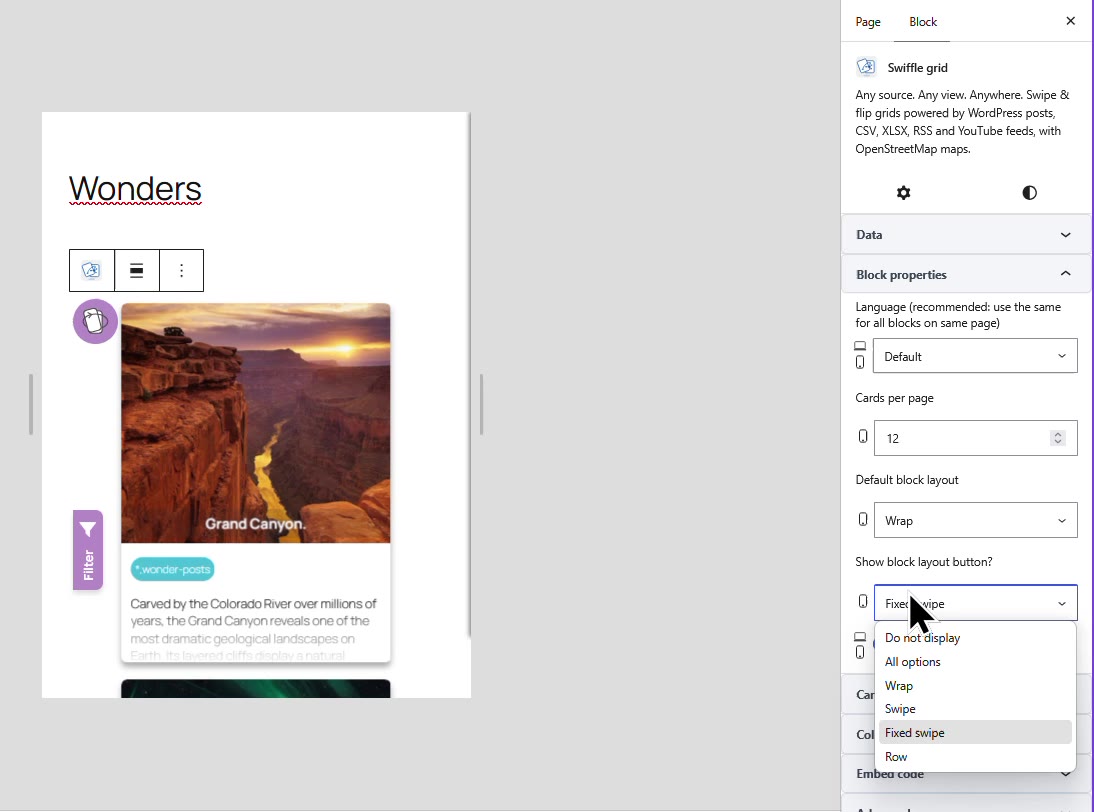
The options of “Show block layout button?”.
Result
Visitors change the layout in one tap and swipe through your posts. A tap flips a card to show the whole post: text, video, photo gallery and map.
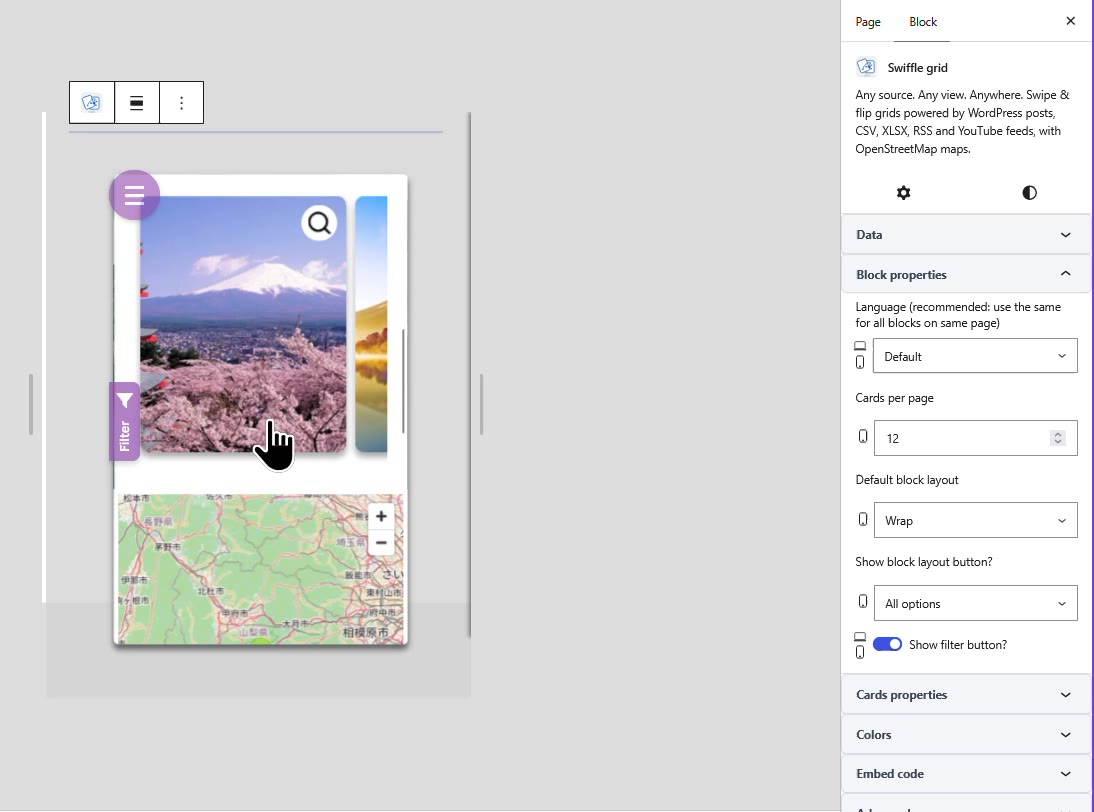
The back of a card: photo gallery and map from the post.
For every option of the block, see the Swiffle Grid block setup reference, or start from scratch with Getting Started with Swiffle Grid (Free).
Thanks for reading. Check out our channel for more tutorials to help you succeed.