
How to Connect Any REST API to WordPress with a Custom Connector
Last updated: August 2026
This walks through the video above step by step, with a screenshot for each stage. The result: a WordPress page driven by live data from any REST API — no static dataset, no copy-pasted JSON, every card fetched in real time. Custom connectors are just standard WordPress plugins, so you can write your own in PHP or import a ready-made one from the Swiffle Grid connector library.
Step 1 — Install a custom connector plugin
A custom connector is a standard WordPress plugin — you build your own, or import a ready-made one from the Swiffle Grid connector library. Either way, it installs the normal way: Plugins → Add New → Upload Plugin, then pick the connector’s zip file.
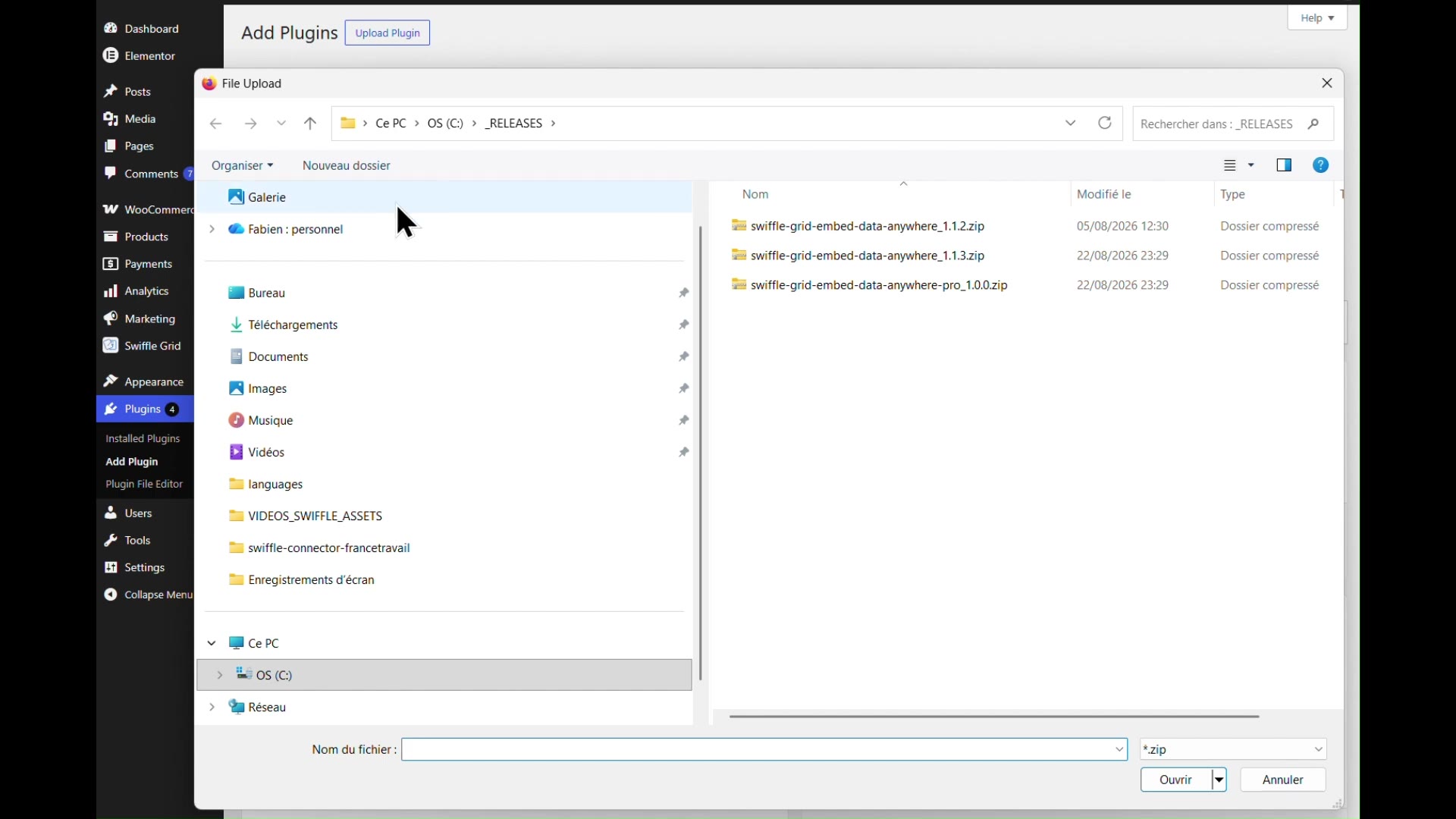
Selecting a connector’s zip file in the plugin upload dialog.
Step 2 — Activate it
Once uploaded, activate the connector plugin like any other. It now shows up in your Plugins list as its own entry, alongside Swiffle Grid itself.
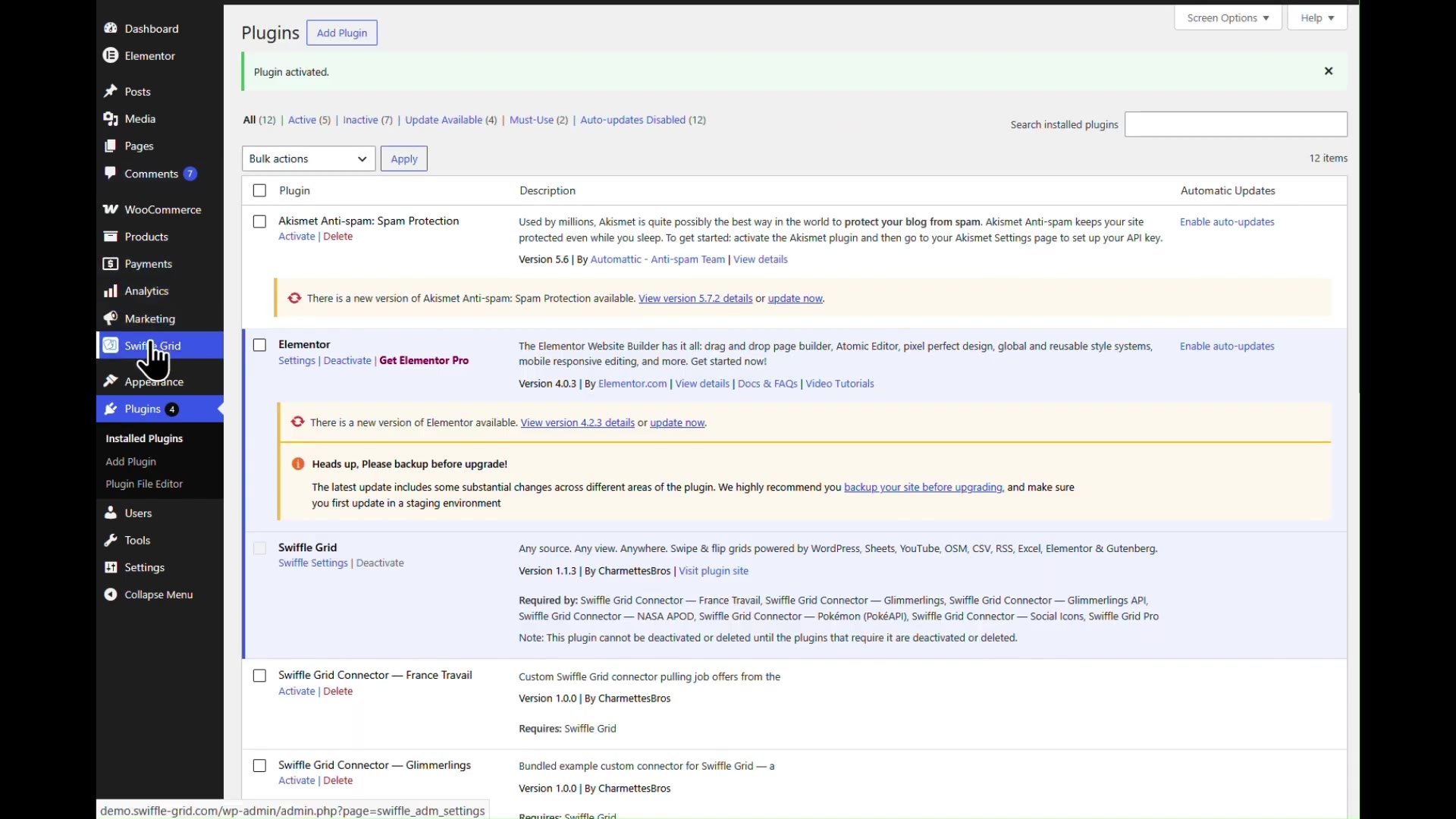
The connector now appears as an active, standalone plugin.
ℹ️ Writing your own connector instead of importing one? See the full Custom Connector Reference for the required plugin structure, function naming, and return format.
Step 3 — Add a Swiffle Grid block
Add a new page (Gutenberg or Elementor both work the same way) and drag a fresh Swiffle Grid block into it.
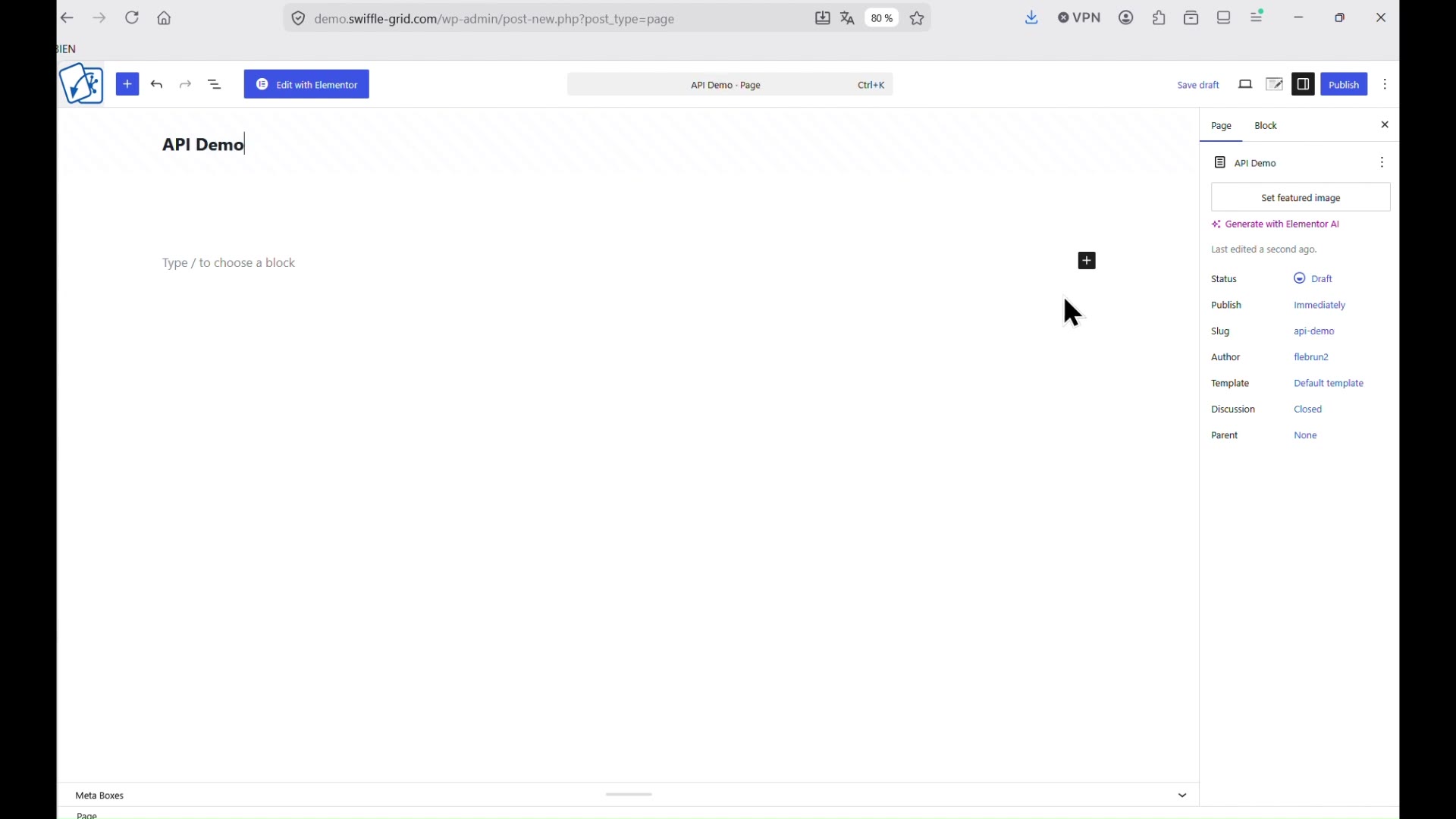
A new page with an empty Swiffle Grid block, ready to configure.
Step 4 — Select the connector as a Custom source
In the block’s Data source dropdown, select Custom, then enter the connector’s registered slug in the Source field. Adjust the layout however you like.
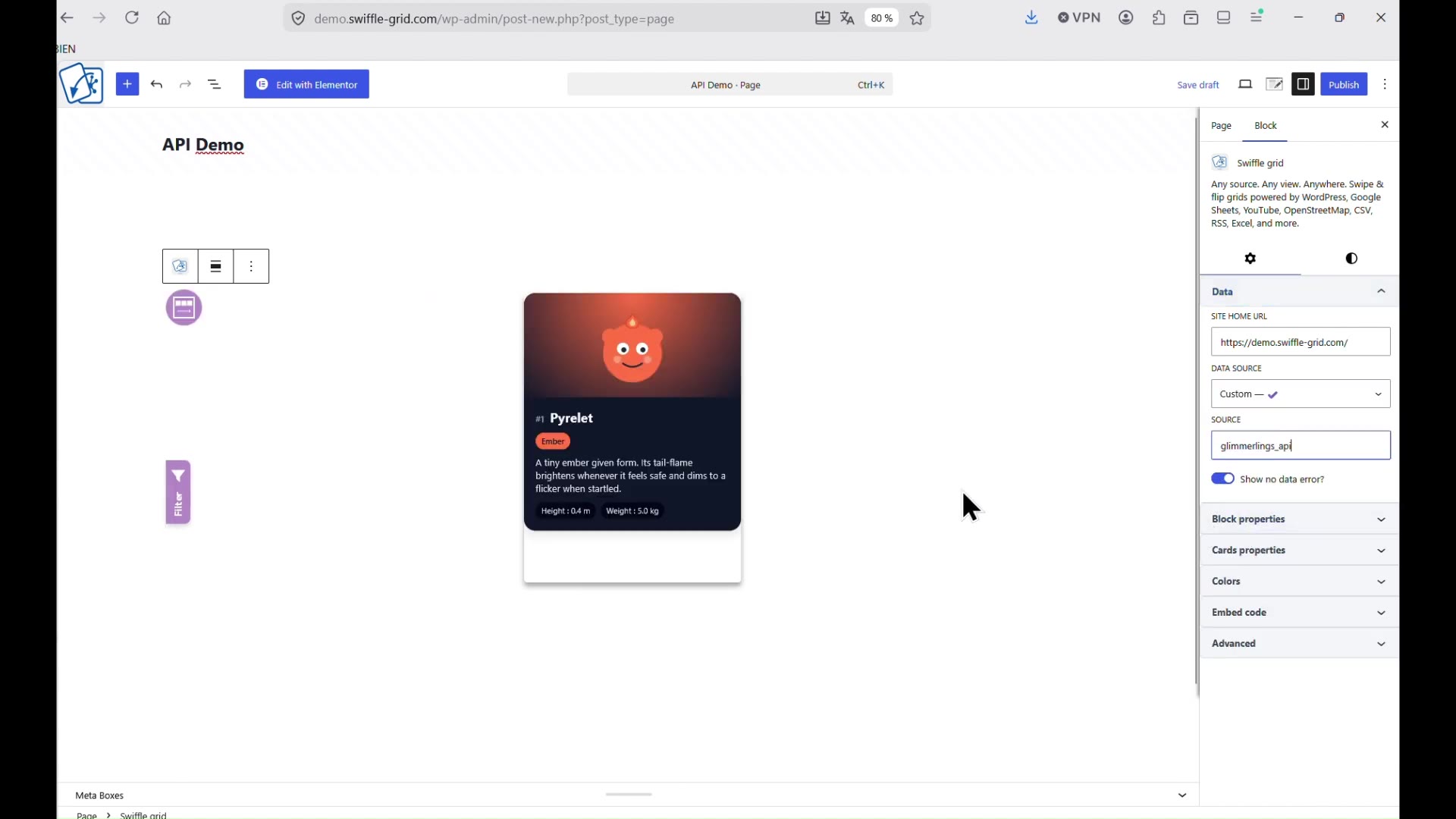
Data source set to Custom, with the connector’s slug entered as the source.
Step 5 — Get an API key if the connector needs one
If the connector calls an external API that requires a key, grab one from wherever the connector’s documentation points you — the sample connector used here offers a free, no-signup demo key valid for one hour, just to try things out.
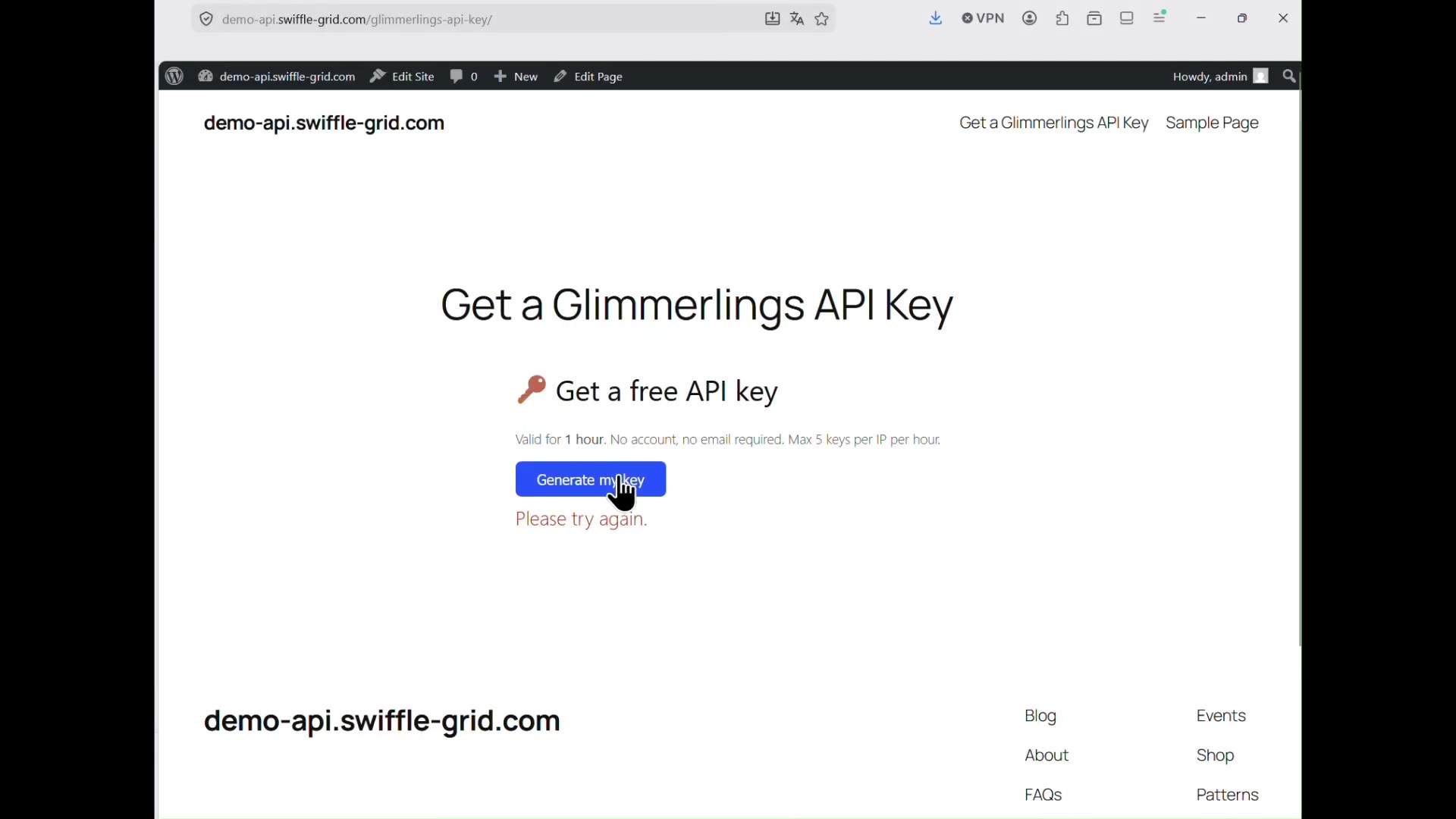
Requesting a temporary demo API key — no account required.
Publish the page and open it.
Result
Your page now renders live data pulled straight from the REST API through the custom connector — swipeable, filterable cards, refreshed on every load, no static dataset involved.
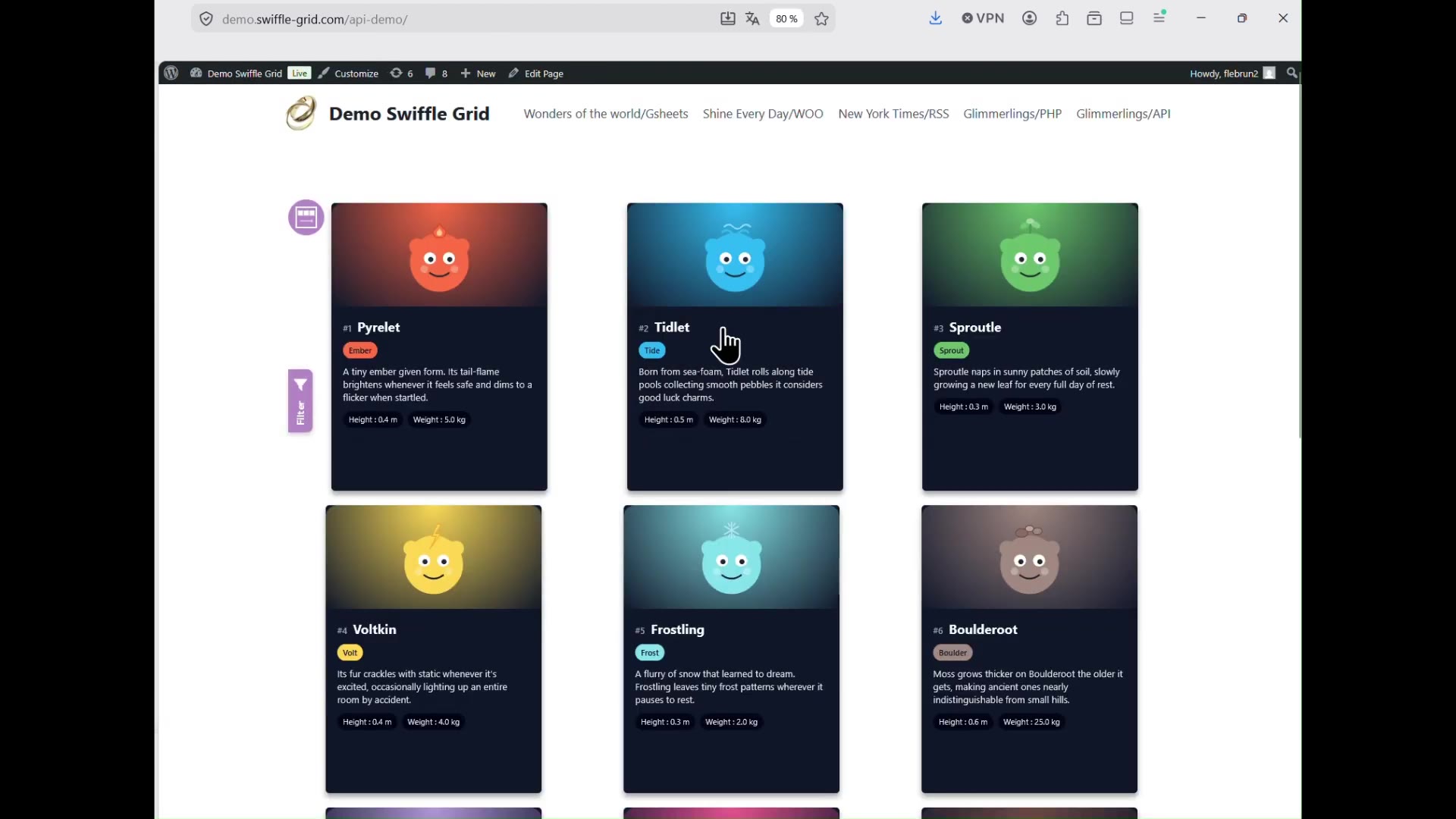
The finished grid, its cards fetched live from the connected REST API.