
Display WordPress Posts on Another Website (Free, No Code)
Last updated: October 2026
This walks through the video above step by step. The result: the posts of your WordPress site displayed on another website (Webflow, Wix, Shopify or a plain HTML page) as flip cards, and kept up to date from WordPress. Free, no code required.
Step 1: Copy the embed code
Open the page that holds your Swiffle Grid block, select the block, open the Embed code panel and click Copy the code.
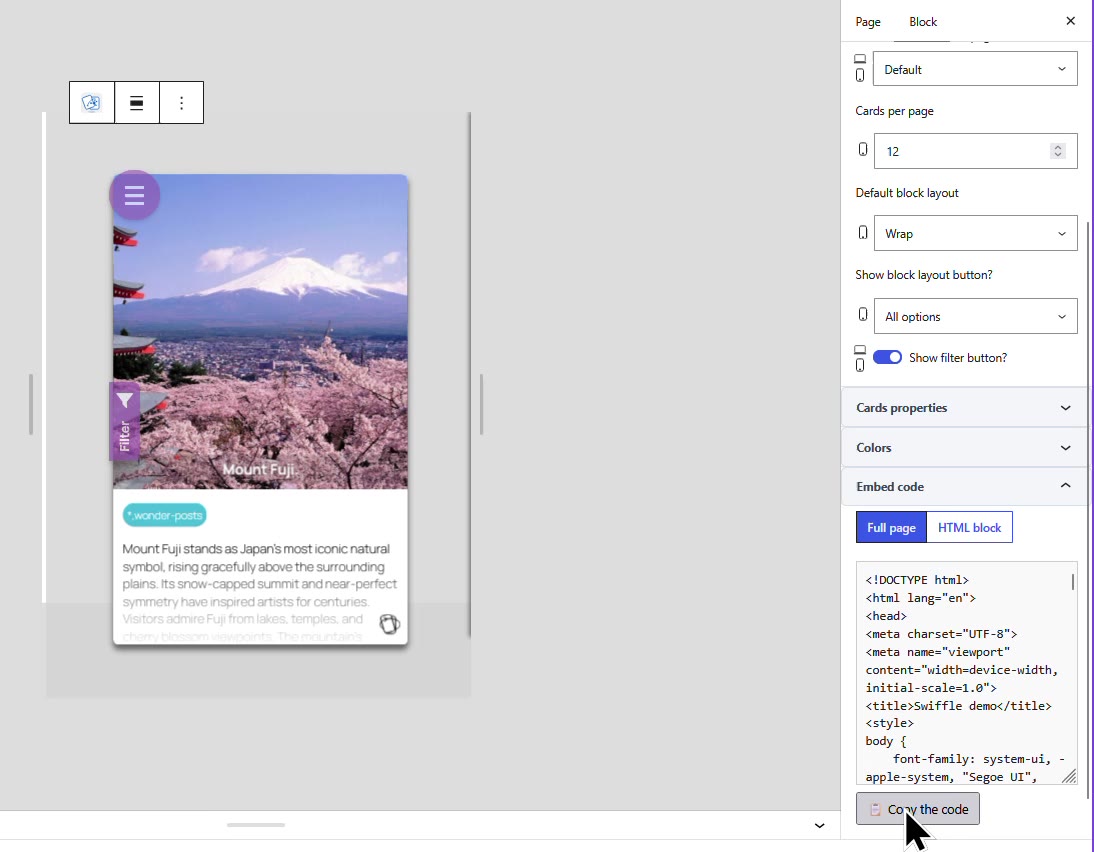
The Embed code panel of the block.
Step 2: Paste it into the other website
Paste the code into the page of the other website: an HTML embed element in Webflow, Wix or Shopify, or directly in a plain HTML page. In the video, the code goes into a plain HTML page on CodePen.
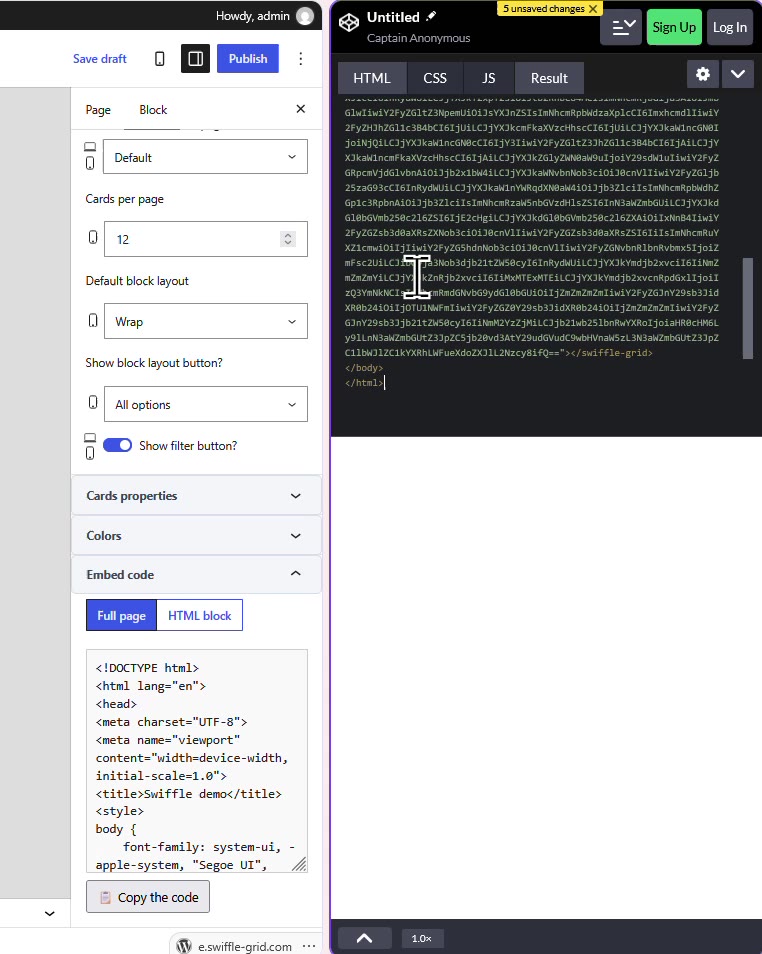
The embed code pasted into a CodePen page.
Step 3: Secure by default
At first, the grid stays empty and shows “Service denied”: your site refuses to send its content to a website you have not allowed. You decide which websites may show your posts.
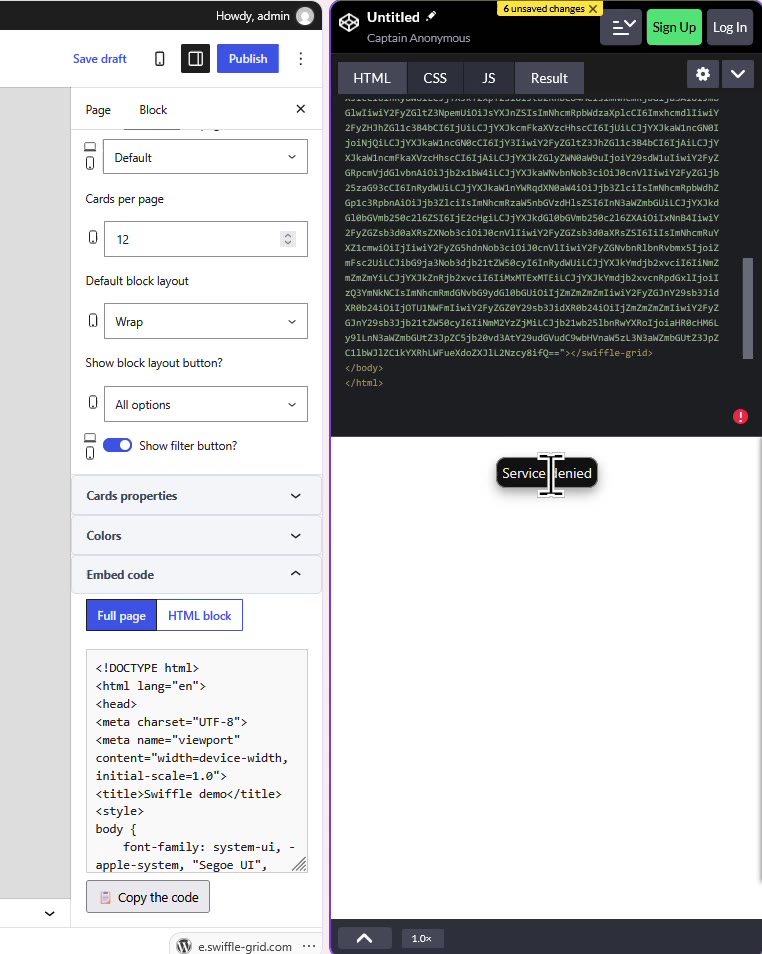
Before it is allowed, the other website gets “Service denied”.
Step 4: Allow the other website
In WordPress, open the Swiffle Grid settings. In URLs allowed to embed, add the address of the page that shows the grid, tick the content it may display (Articles for posts), and click Save Changes.
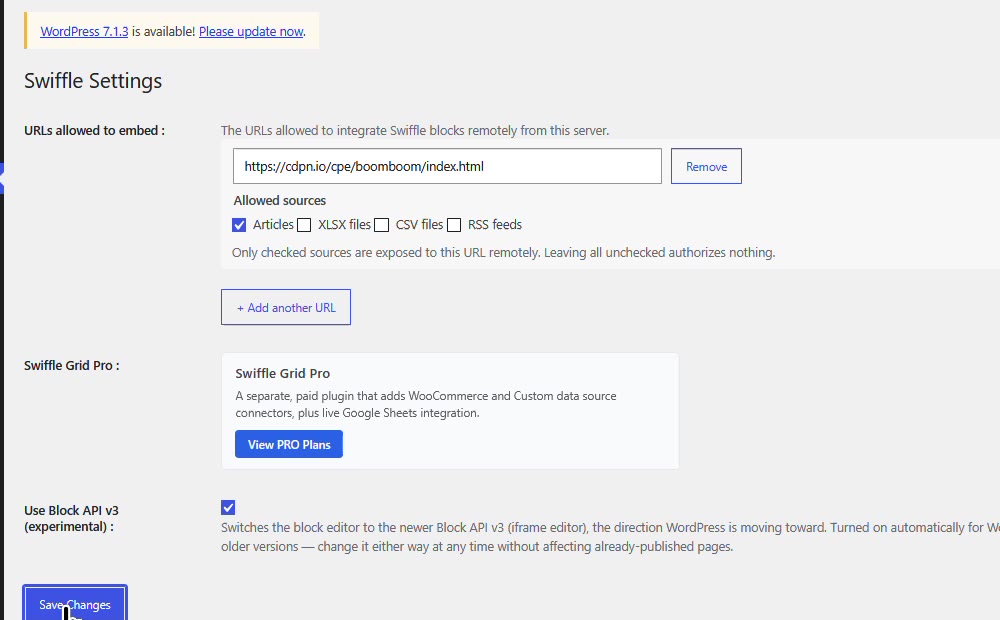
The page address, allowed to show Articles.
ℹ️ Enter the exact address of the page that shows the grid, and tick only the sources it needs: unchecked sources are never sent to that page.
⚠️ Trying it on CodePen? Allow https://cdpn.io/cpe/boomboom/index.html. Every CodePen preview uses this same address: while it is allowed, anyone can display the content you allowed. Remove it after your test.
Result
Reload the page: your posts now appear on the other website, and everything works there too: flip cards, layouts, videos, galleries and maps. When you edit a post in WordPress, the other website shows the change.
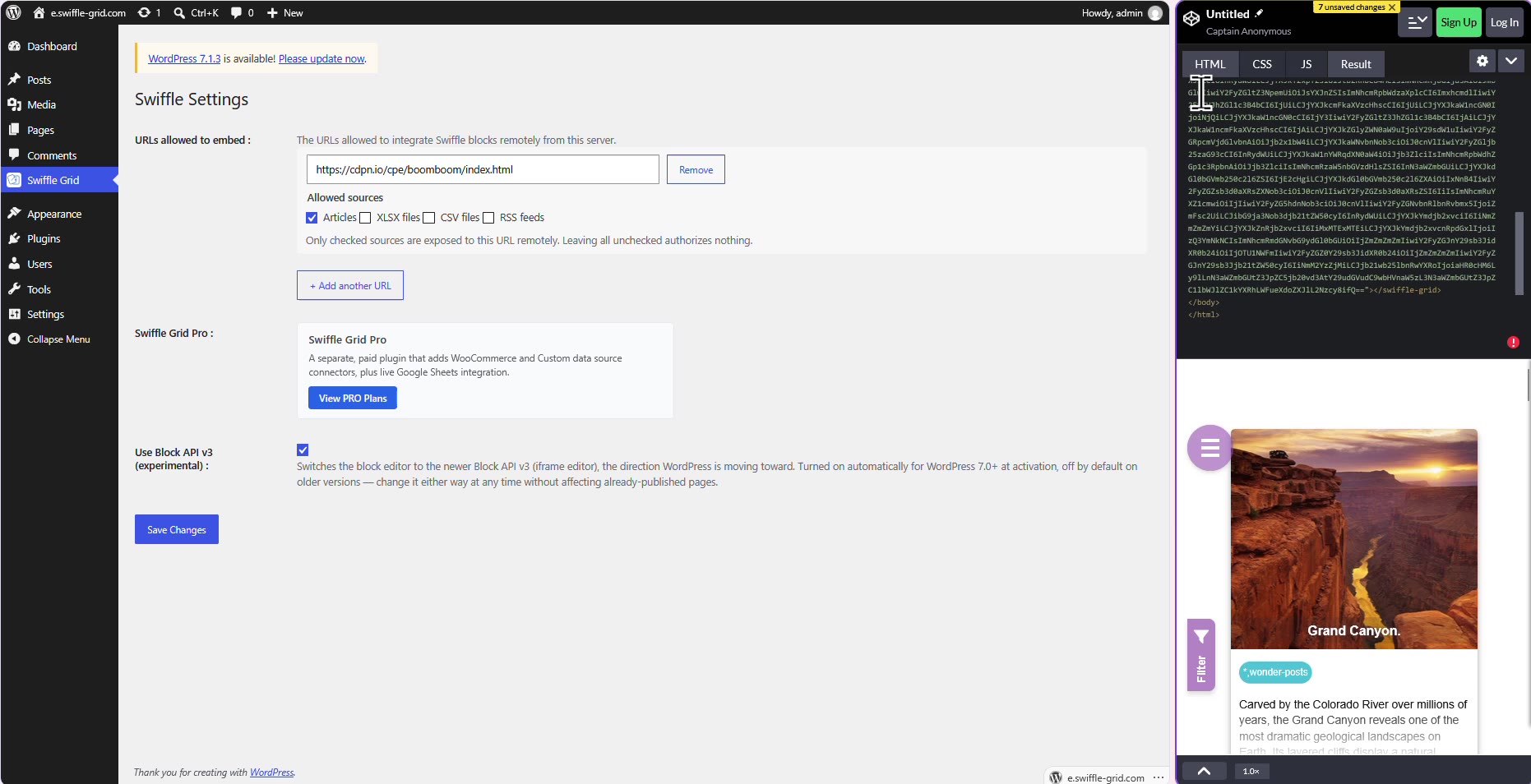
Allowed on the left, your posts on the other website on the right.
To learn more about allowed websites and sources, see Understanding remote embed authorization. To build the grid itself, see WordPress Post Grid with Flip Cards (Free, No Code).
Thanks for reading. Check out our channel for more tutorials to help you succeed.