
Tinder-Style Swipe Cards in WordPress (Free Plugin, No Code)
Last updated: October 2026
This walks through the video above step by step. The result: your WordPress posts become a deck of cards that visitors swipe with their thumb on a phone, like on Tinder. The featured image and title are on the front, the whole post is on the back, and on a computer the same posts show as a clean grid. Free, no code required.
Step 1: Install Swiffle Grid
In your dashboard, go to Plugins › Add New and search for “tinder cards”. Swiffle Grid shows up in the results: click Install Now, then Activate. The plugin is free on WordPress.org.
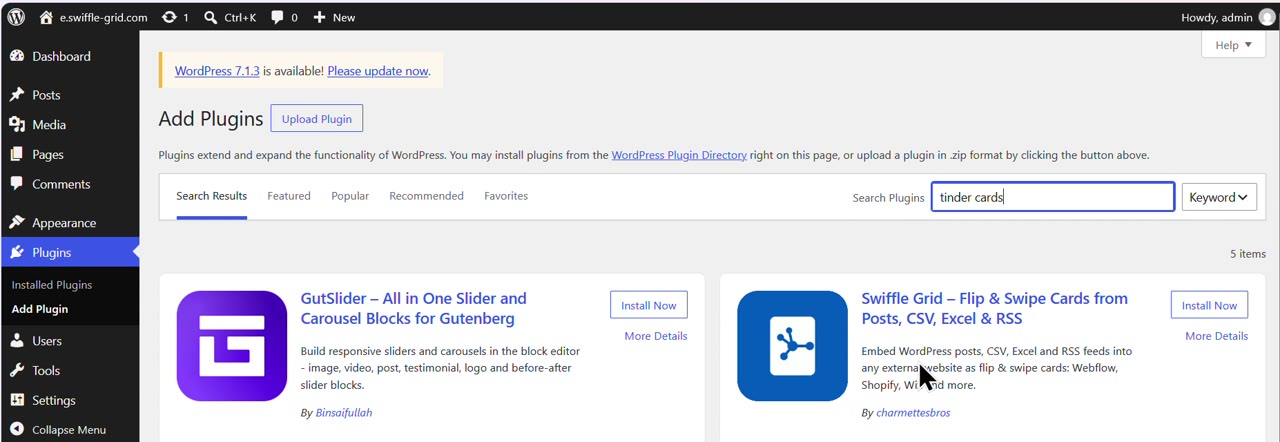
Search for “tinder cards” in Plugins › Add New.
Step 2: Add the Swiffle Grid block
Create a page, click + and add the Swiffle Grid block. With WordPress as the data source, your posts show up right away as cards.
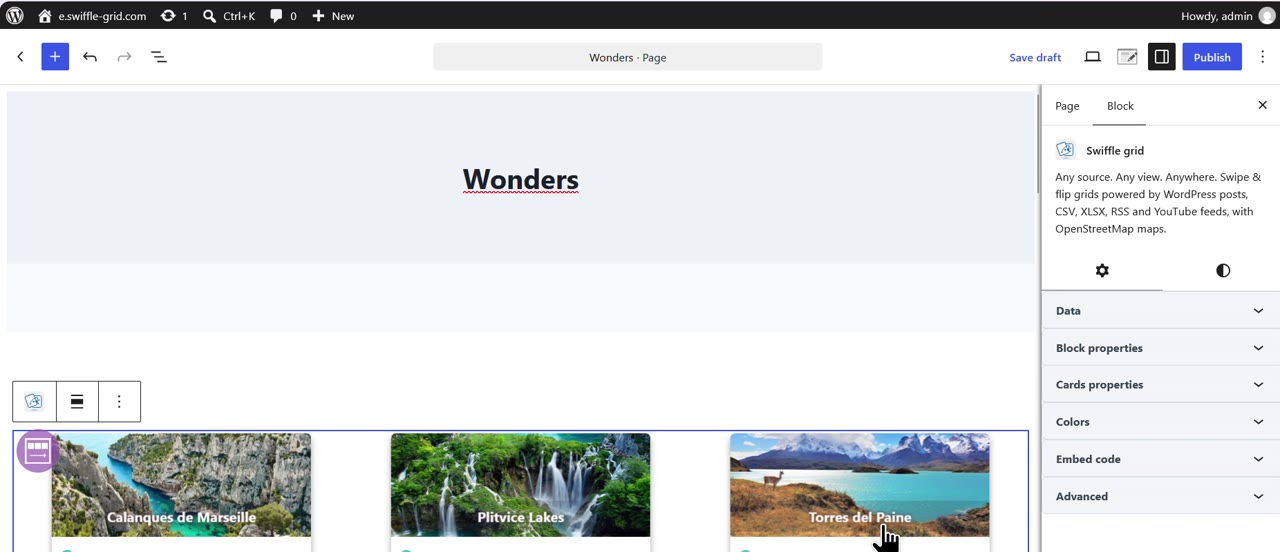
The Swiffle Grid block, with your posts as cards.
Step 3: Pick a category
Open the Data section of the block and tick a Category to choose which posts make up the deck. Here, only the “Demo Wonder Navigation” category is shown.
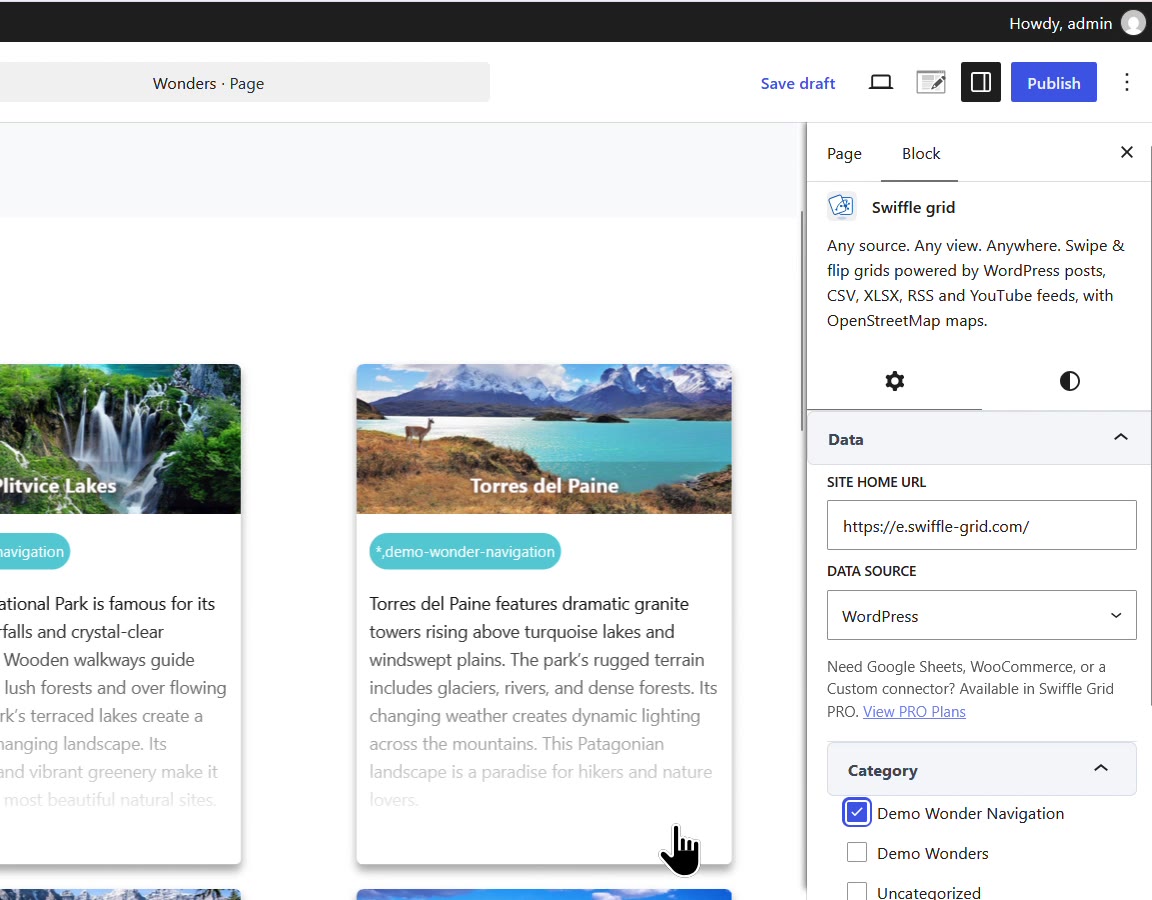
Choose the category in the Data section.
Step 4: Tune the phone version
Switch the editor preview to Mobile. The settings now show a phone icon: what you change here only applies to phones. Here, in Cards properties, the picture takes a bigger part of the card. A tap on a card flips it, even in the editor.
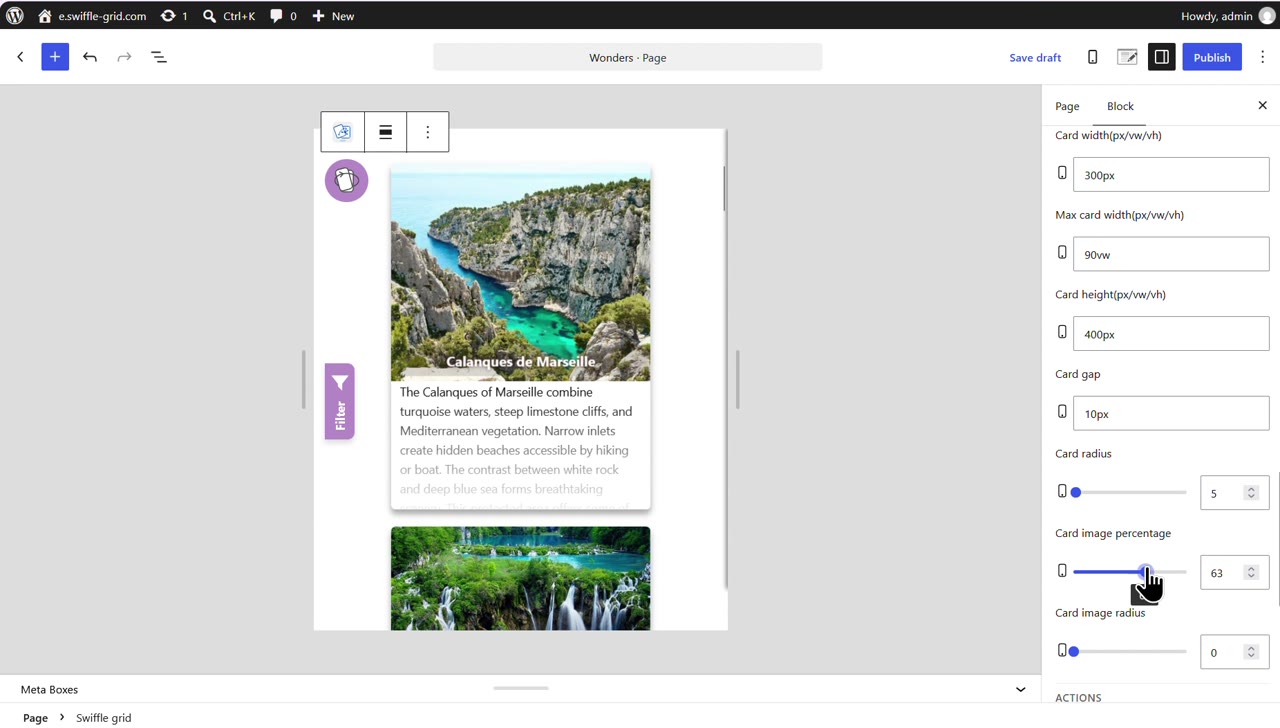
In mobile preview, the settings apply to phones only.
Step 5: Check the tap action
Still in mobile preview, go down to ACTIONS in Cards properties. Card front click/tap action is already set to Flip on phones: a tap turns the card over. On computers, the default is Window 80%: a click opens the post in a window. Nothing to change.
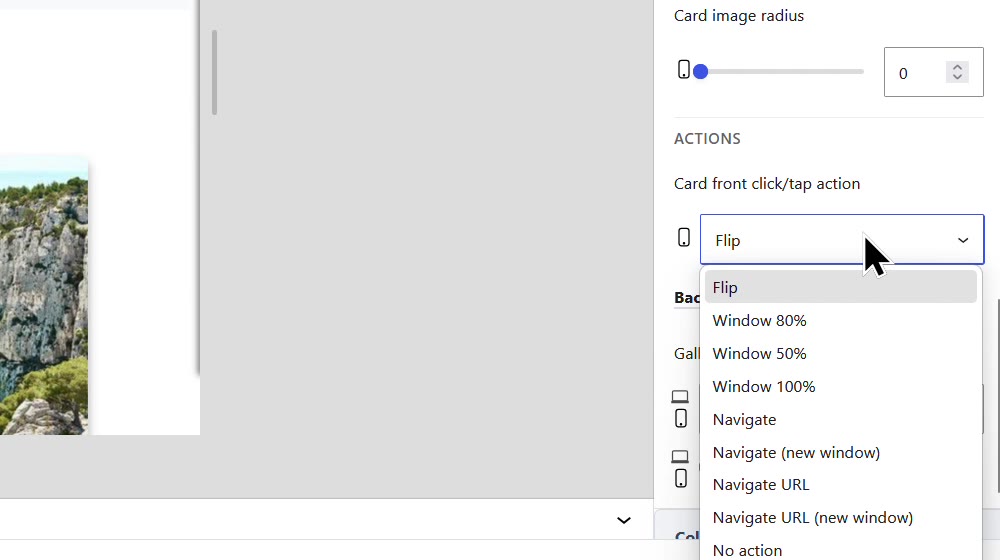
“Card front click/tap action” on phones: Flip.
Then click Publish.
Result on a computer
On a computer, visitors get a clean grid of cards. A click on a card opens the full post in a window.
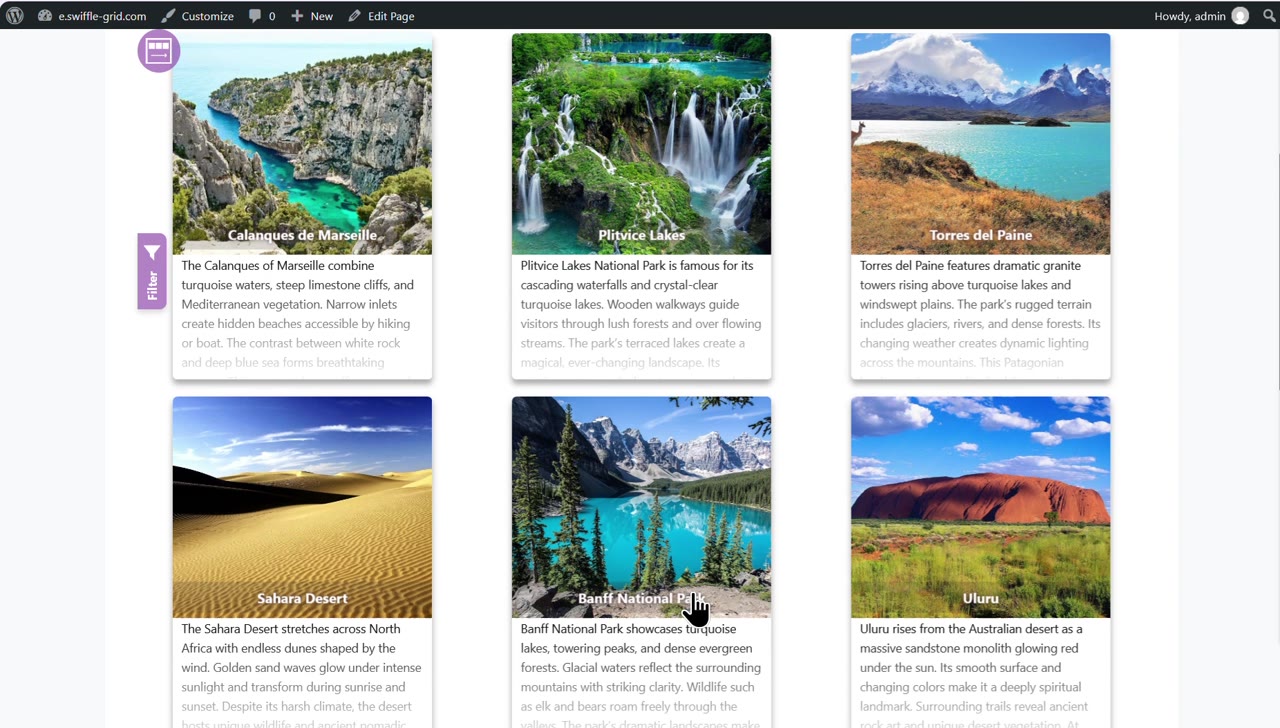
The published page on a computer.
Result on a phone: swipe and flip
- The cards first sit in a column. Tap one to flip it and read the post.
- Tap the round button at the top left: the cards turn into a deck. Swipe the top card away with your thumb to see the next one, just like Tinder.
- Tap the top card to flip it, then keep swiping.
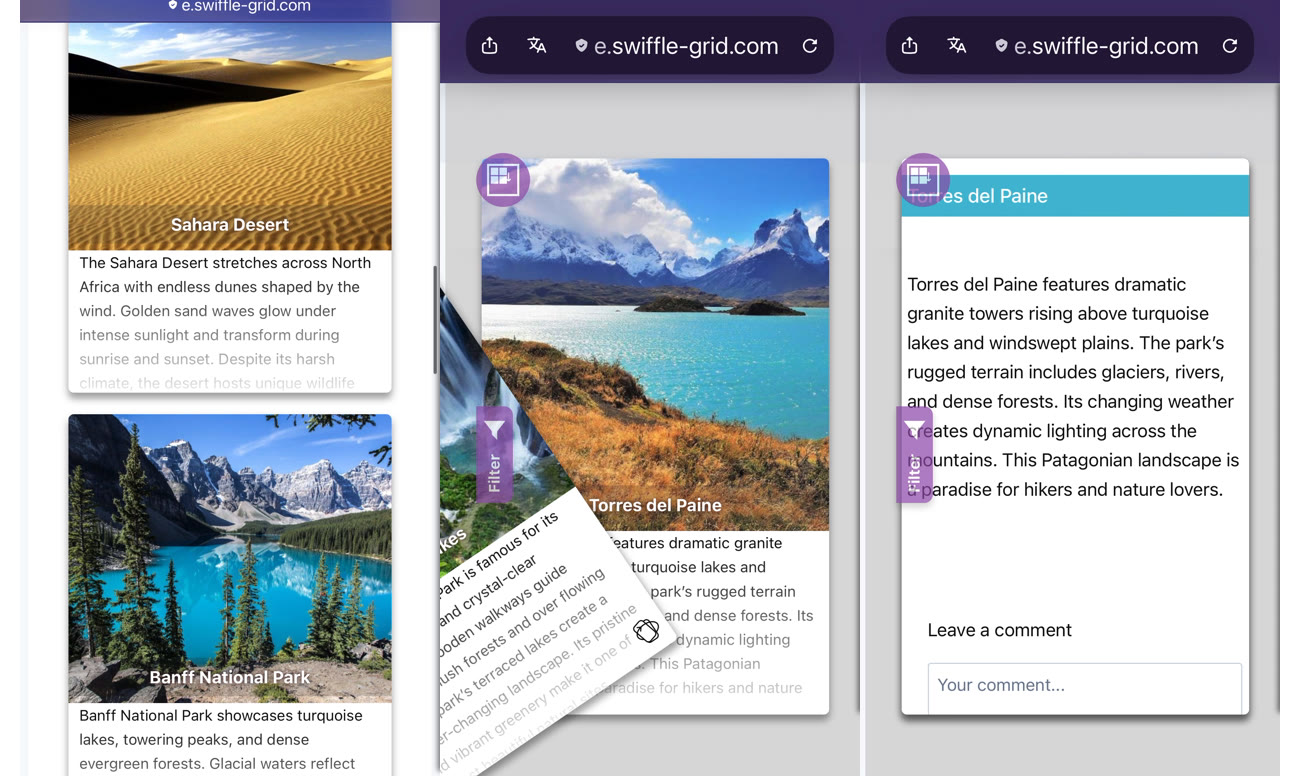
On a phone: the column, a card being swiped, a flipped card.
ℹ️ The deck is made of your posts: add a new post with a featured image in the category chosen in Step 3, and it becomes a new card on its own.
Building with Elementor? See Flip Boxes in Elementor Without Elementor Pro. For a grid of flip cards with the block editor, see WordPress Post Grid with Flip Cards (Free, No Code). For every option of the grid, see the Swiffle Grid block setup reference.
Ready to try it on your own site?
Download Swiffle Grid freeNeed WooCommerce, Google Sheets or a custom API? Try PRO free for 14 days, no credit card needed.
Thanks for reading. Check out our channel for more tutorials to help you succeed.