
Flip Boxes in Elementor Without Elementor Pro (Free, from Your Posts)
Last updated: October 2026
This walks through the video above step by step. The result: flip boxes in the free version of Elementor, built from your WordPress posts. The featured image and title are on the front, the whole post is on the back, and every new post adds a new flip box on its own. Free, no code required.
The problem: Flip Box is an Elementor Pro widget
Search for “flip” in the Elementor widget panel: the Flip Box widget has a lock icon, and clicking it only offers to upgrade to Elementor Pro.
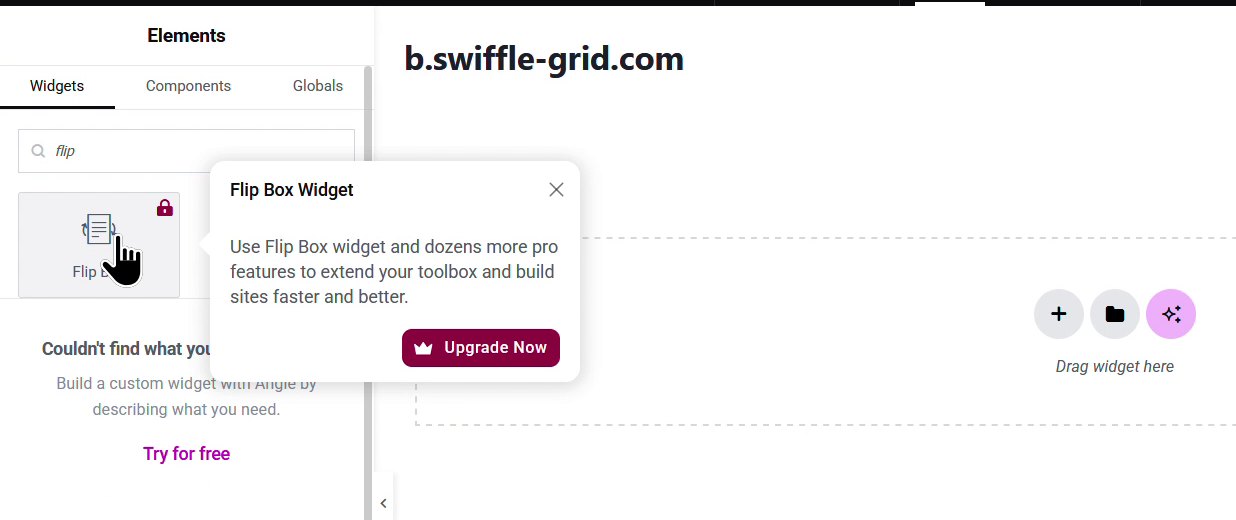
In free Elementor, the Flip Box widget is locked.
Step 1: Add the Swiffle Grid widget
Install the free Swiffle Grid plugin, then search for “Swiffle” in the Elementor widget panel and drag the Swiffle Grid widget into your page. With WordPress as the data source, your posts show up right away as cards.
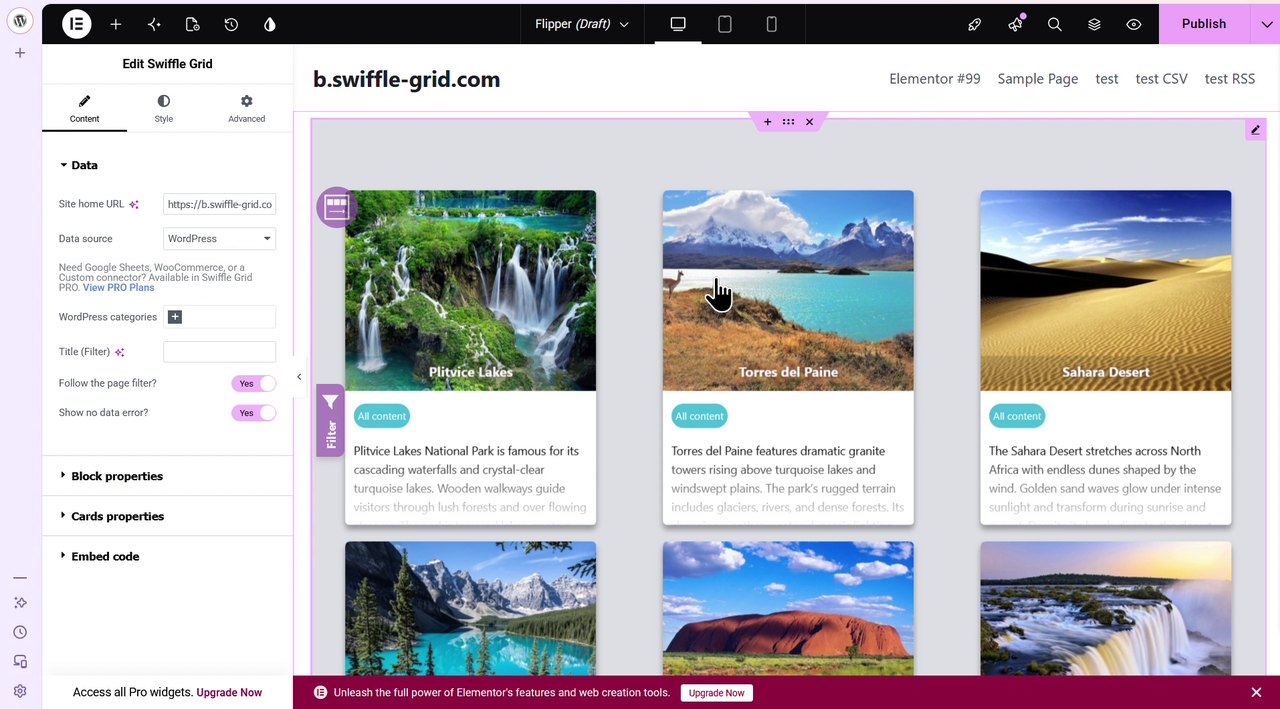
The Swiffle Grid widget, with your posts as cards.
Step 2: Pick a category
In the Data section of the widget, use WordPress categories to show only the posts you want. Here, only the “Demo Wonder Navigation” category is shown.
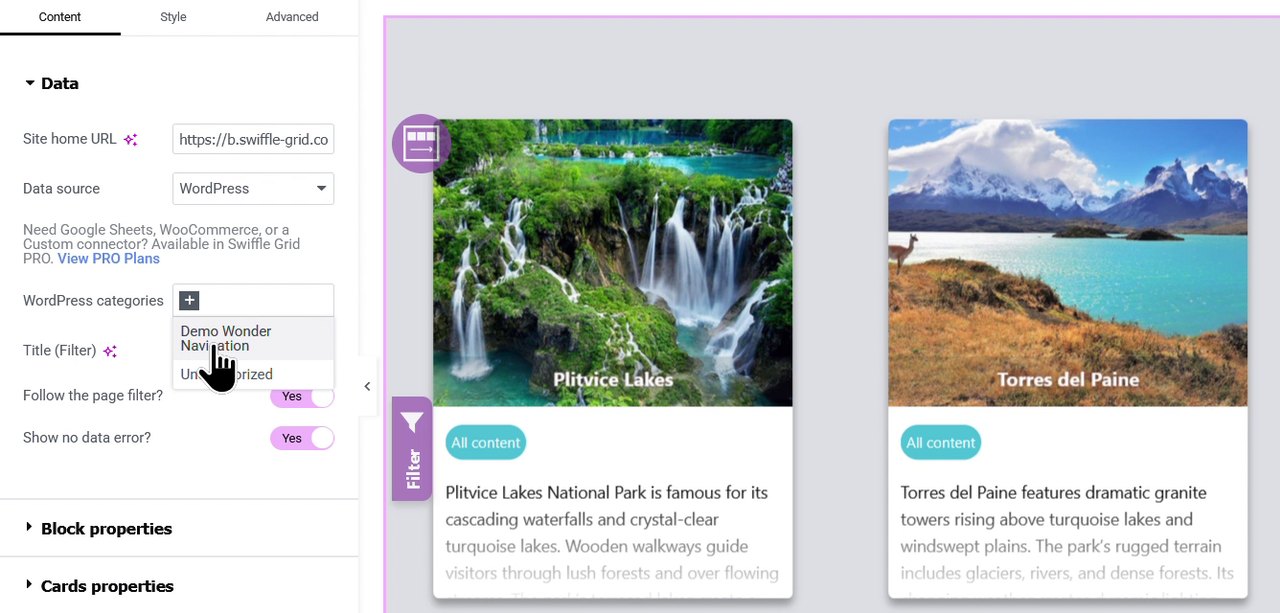
Choose the categories to show in the Data section.
Step 3: Set the click action to Flip
Open Cards properties and go down to ACTIONS. By default, a click opens the post in a window. Set Card front click/tap action to Flip.
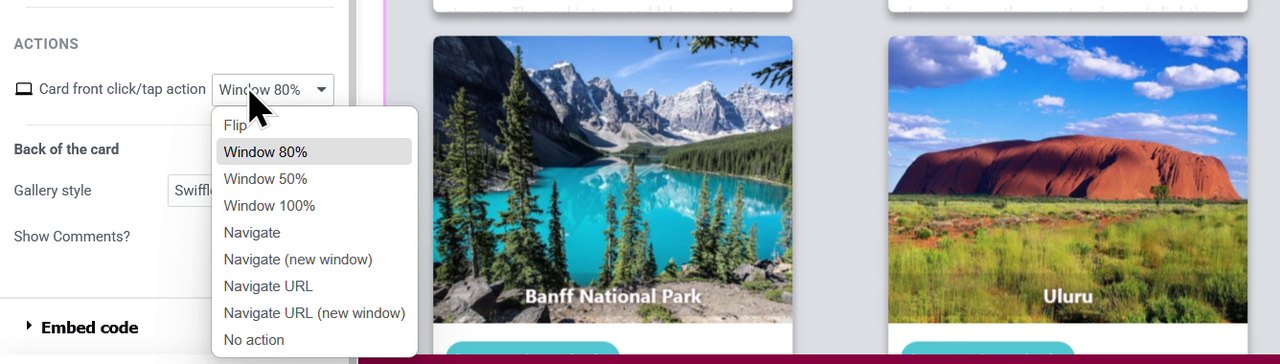
The “Card front click/tap action” list: choose Flip.
Step 4: Click a card to flip it
Click a card in the editor: it flips over and shows the whole post on the back. Just below, in Back of the card, you can choose the gallery style and whether comments are shown.
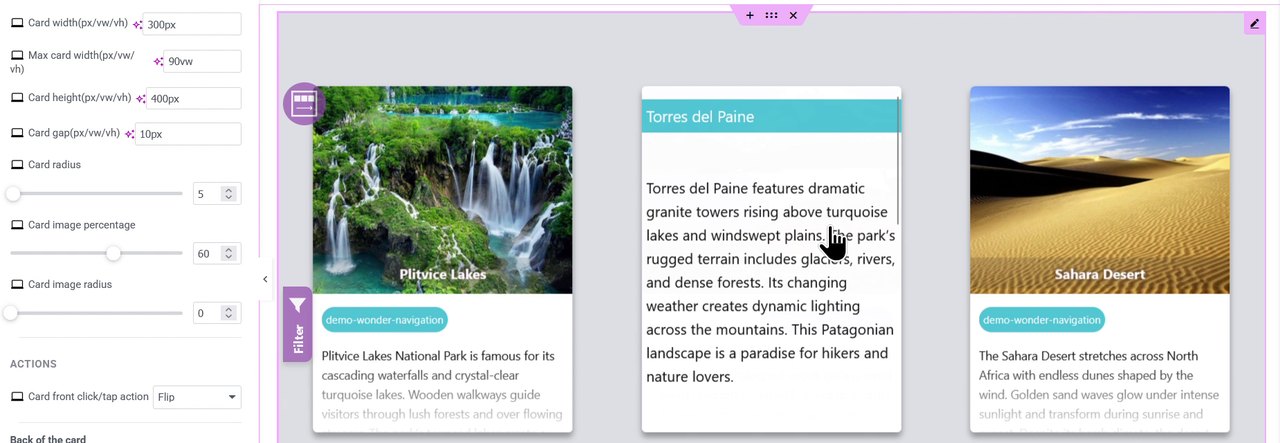
The back of the card shows the whole post.
Step 5: Check it on phones
Switch Elementor to the Mobile preview: the cards fit the screen, and a tap flips them.
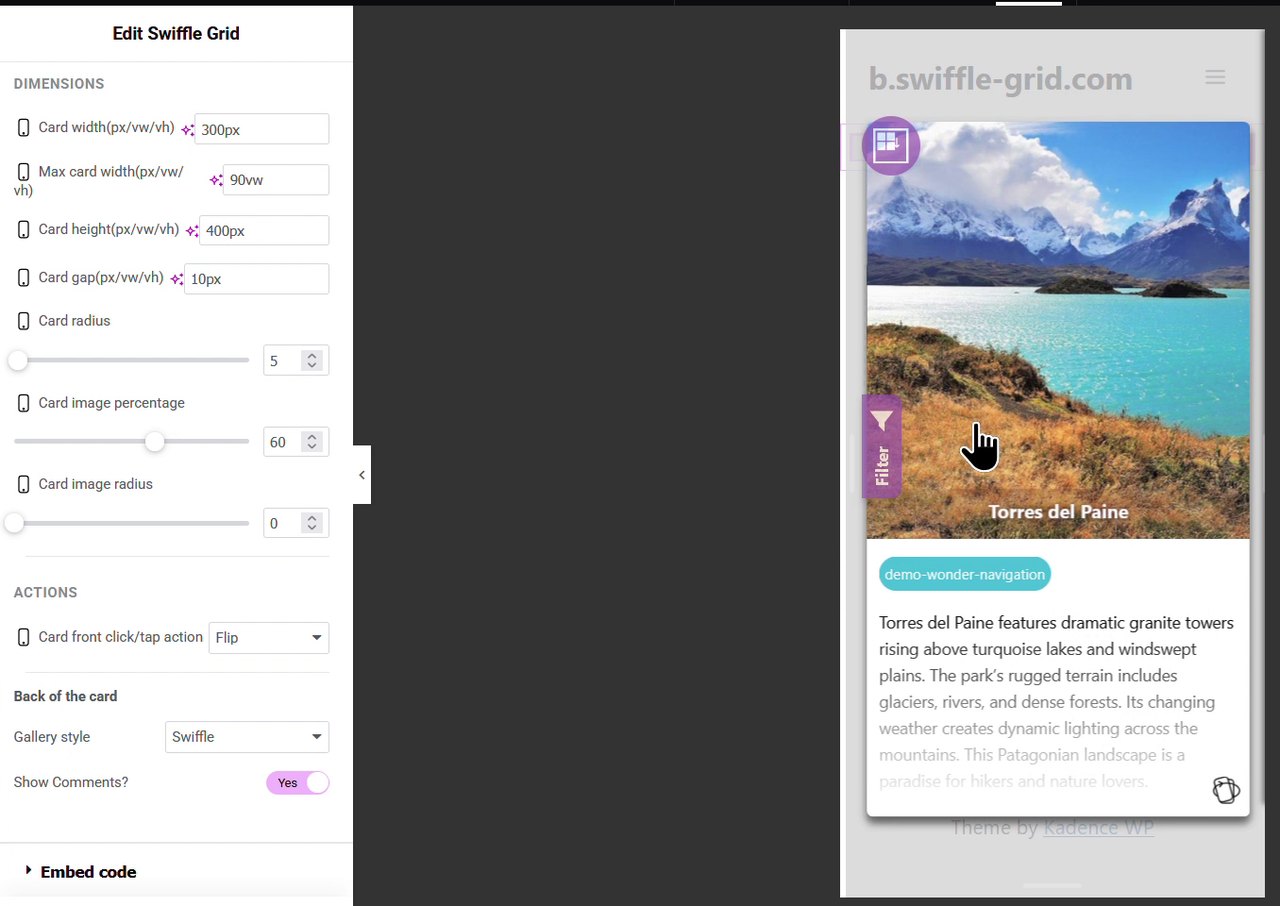
In mobile preview, a tap flips the card.
Then click Publish: your flip boxes are live.
Step 6: Add a new post
This is where it beats a hand-made flip box. Add a new post with its text and a featured image, tick the same category, and save it.
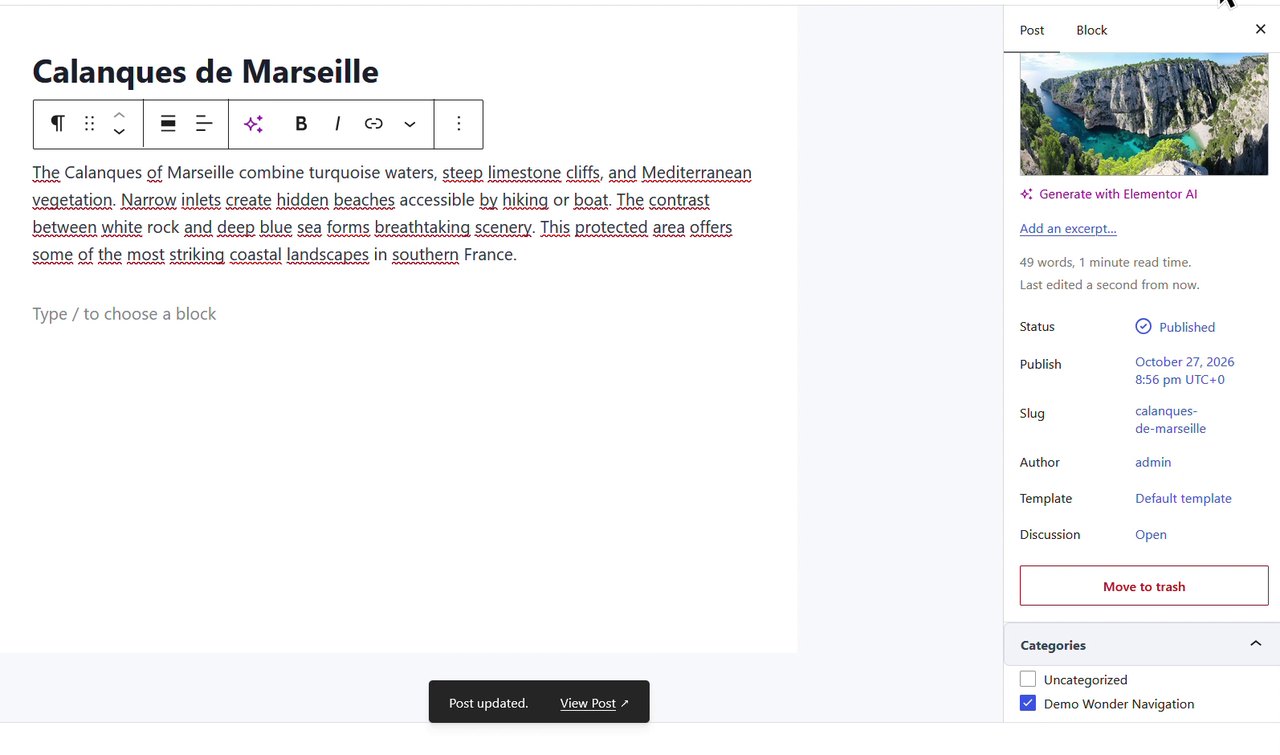
A new post, with a featured image, in the same category.
ℹ️ If the new card does not show up, check the category of the post: only the categories chosen in Step 2 are displayed.
Result
Back on the page, a new flip box appeared all by itself, first in the grid. No need to build each box by hand: your flip boxes now update themselves, without Elementor Pro.
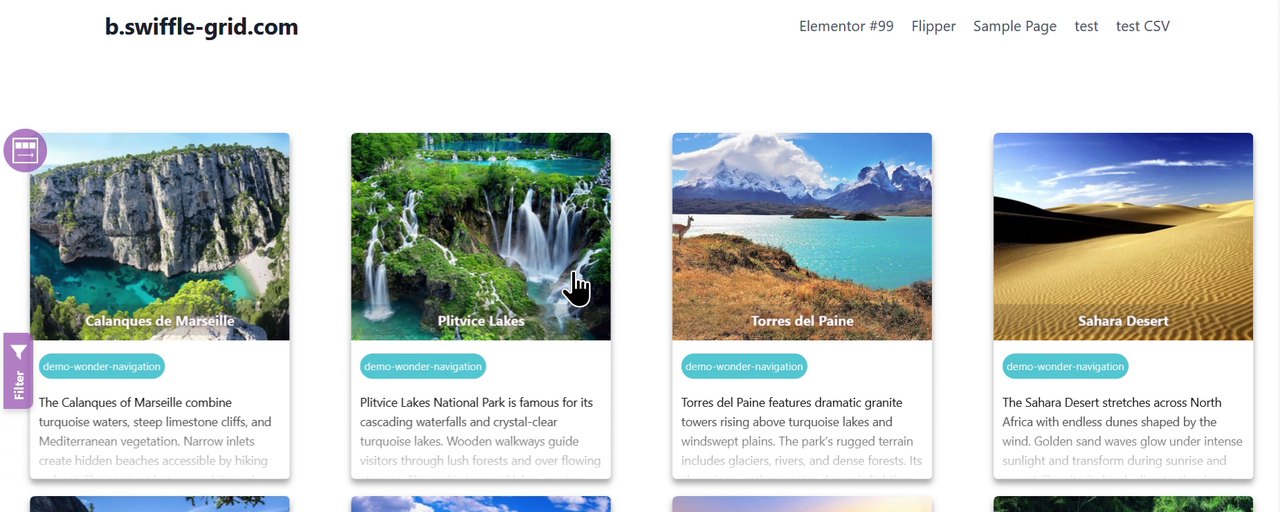
The new post is the first card of the grid.
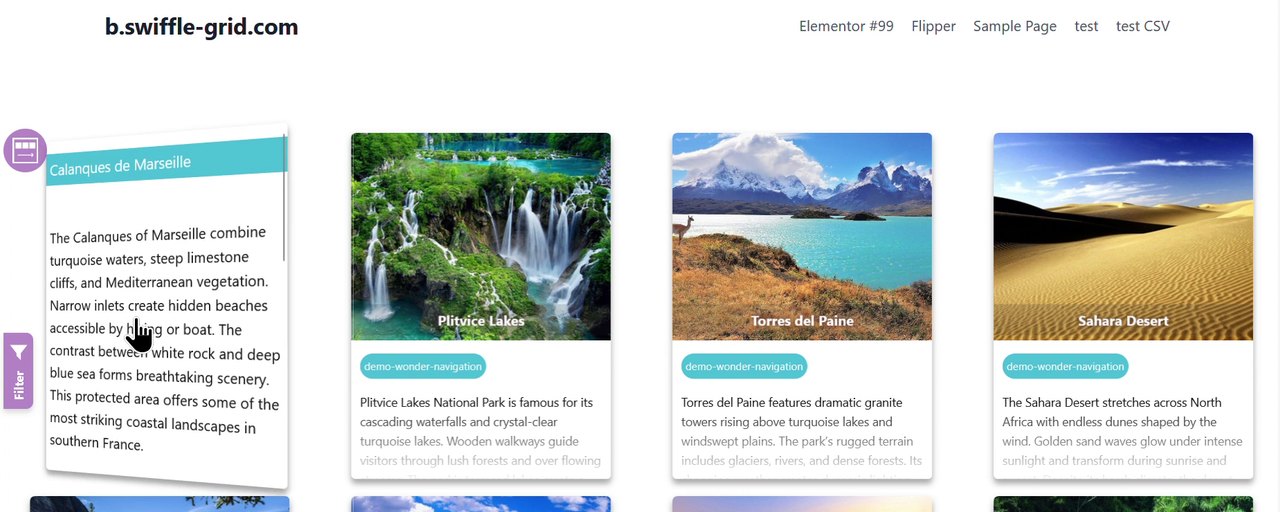
A click flips it to show the post.
Prefer the block editor? See WordPress Post Grid with Flip Cards (Free, No Code). For every option of the grid, see the Swiffle Grid block setup reference.
Ready to try it on your own site?
Download Swiffle Grid freeNeed WooCommerce, Google Sheets or a custom API? Try PRO free for 14 days, no credit card needed.
Thanks for reading. Check out our channel for more tutorials to help you succeed.