
Sell WooCommerce Products on Partner Websites and See Which Site Sold What (No Code)
Last updated: November 2026
This walks through the video above step by step. The result: partner websites show your WooCommerce products with a full cart, the buyer pays on your own shop, and a report tells you exactly which partner site brought each order. A partner site needs neither WordPress nor the plugin. This feature is part of Swiffle Grid PRO.
The partner websites
Here are two partner websites. Neither is your shop: each one simply displays your products with a Swiffle Grid, cart included, and each with its own look. The first one shows vertical cards, the second one wider horizontal cards with rounded corners.

First partner website: vertical cards.
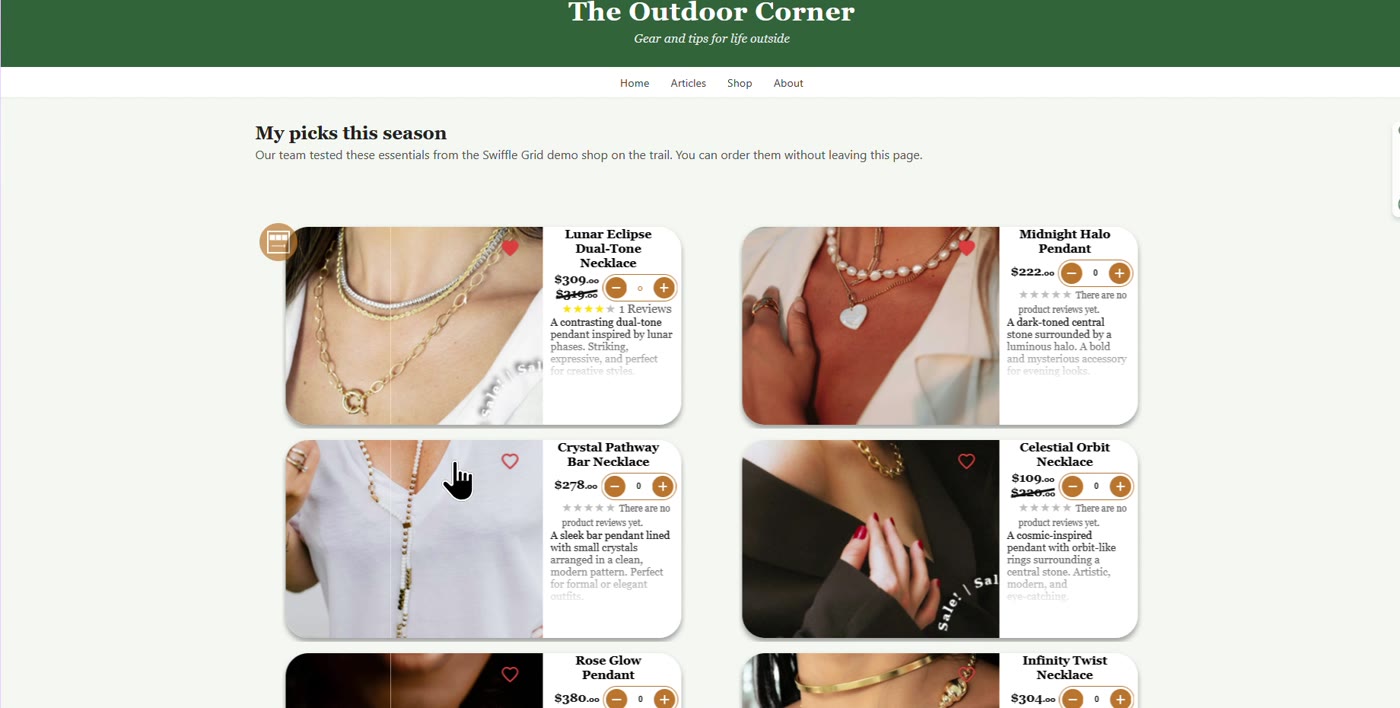
Second partner website: the same shop, displayed differently.
To put your products on a partner website, follow Embed WooCommerce Products on Another Website first.
Step 1: Allow each partner page
In your shop, open the Swiffle Grid settings and add the address of each partner page, with WooCommerce products ticked as allowed source. Only the pages listed here can show your products.
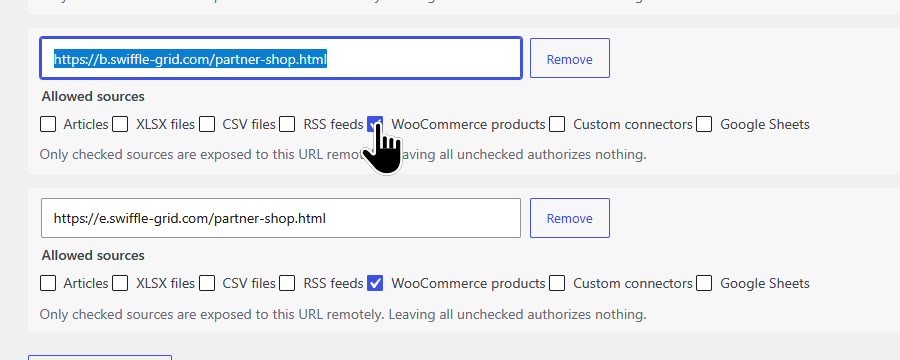
Each partner page is allowed for WooCommerce products.
Step 2: The visitor fills the cart on the partner site
On the partner website, the visitor adds products to the cart, opens the mini-cart and clicks Checkout.
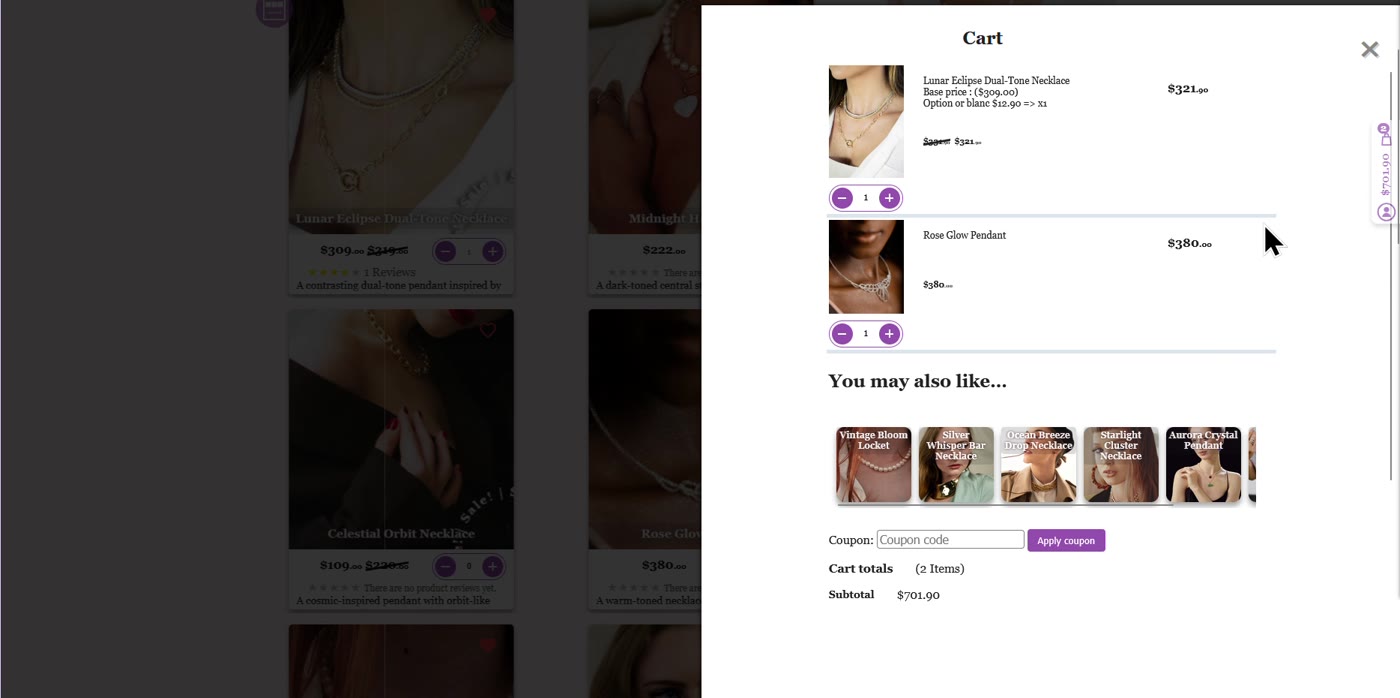
The mini-cart, on the partner website.
Step 3: The order is placed on your shop
The visitor lands on your own checkout page and places the order as usual. Swiffle Grid remembers which website sent the buyer, for up to 30 days, and stores it in the order.
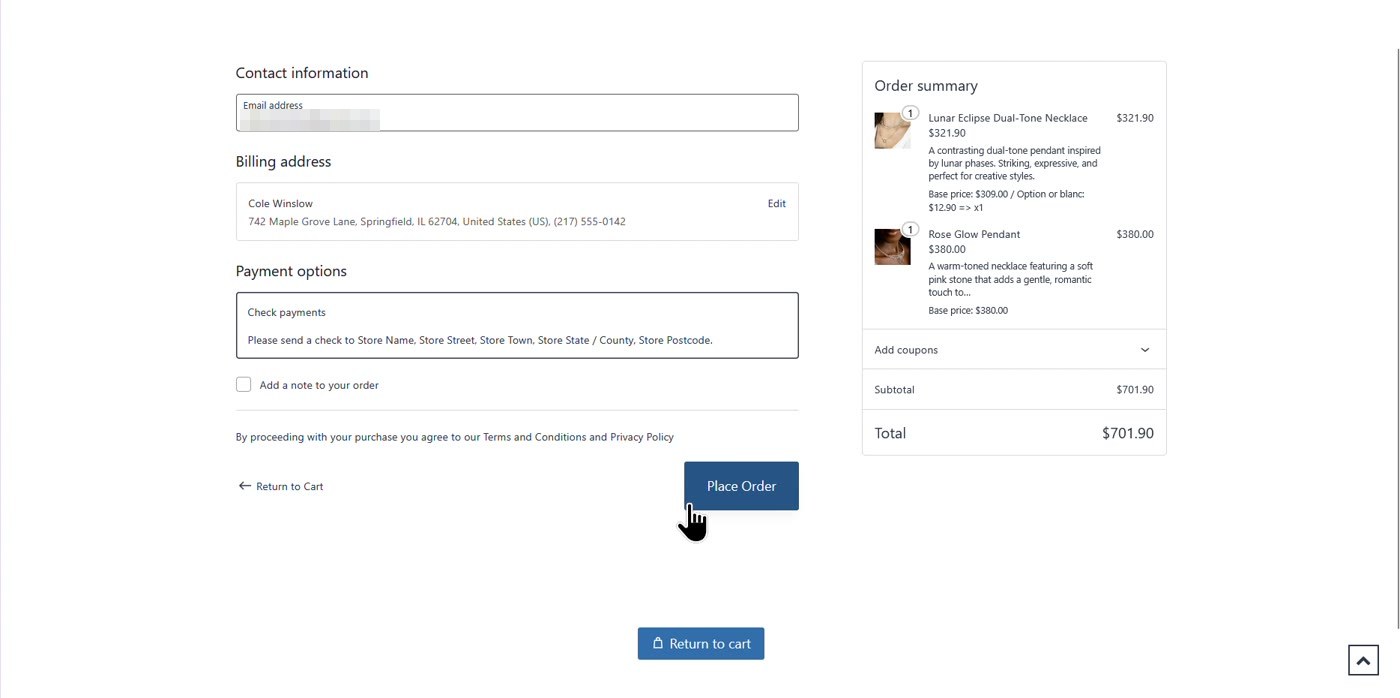
The checkout page of your shop.
Step 4: Back to the partner website
After the order, a Return to cart button takes the buyer back to the partner website they came from.
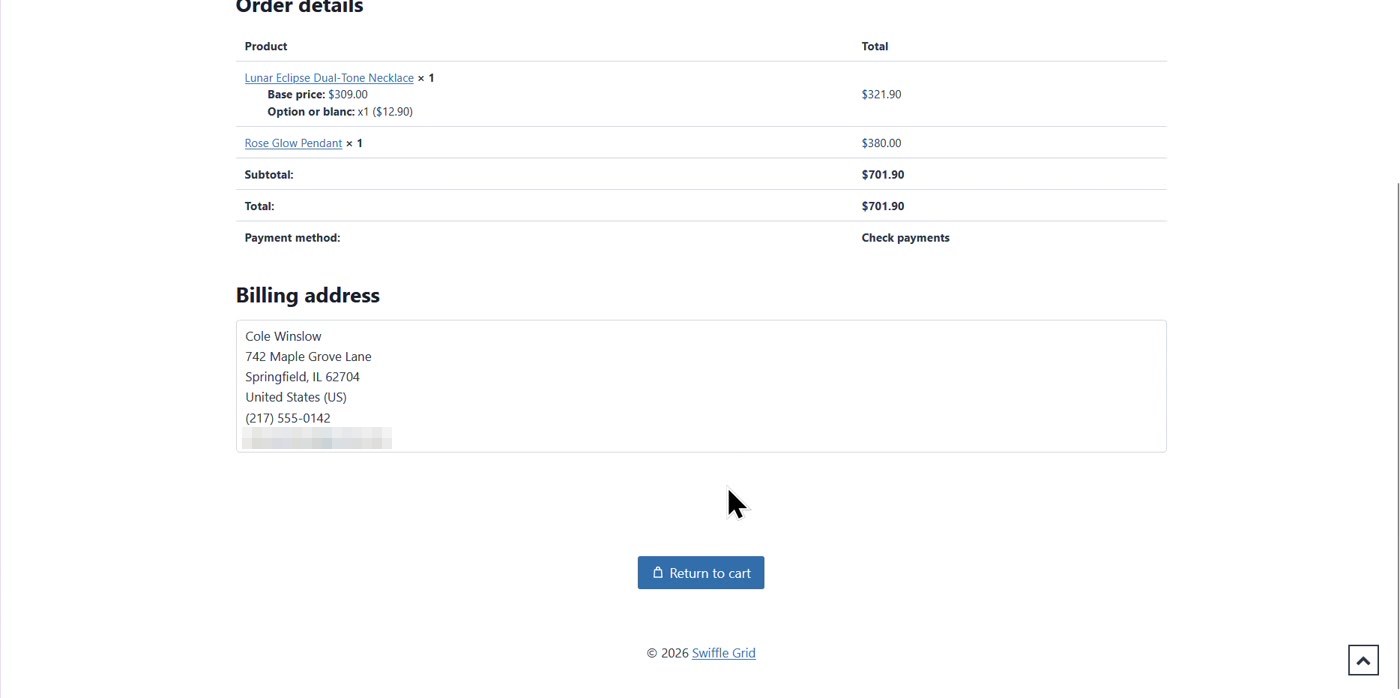
The Return to cart button on the order received page.
Step 5: Open the Sales by site report
In your dashboard, go to WooCommerce › Sales by site. Every site that brought paid orders (processing and completed) is listed, with its number of orders and its revenue, which is the order total minus refunds. Orders that did not come through a grid appear under No grid. Choose the dates with From and To.
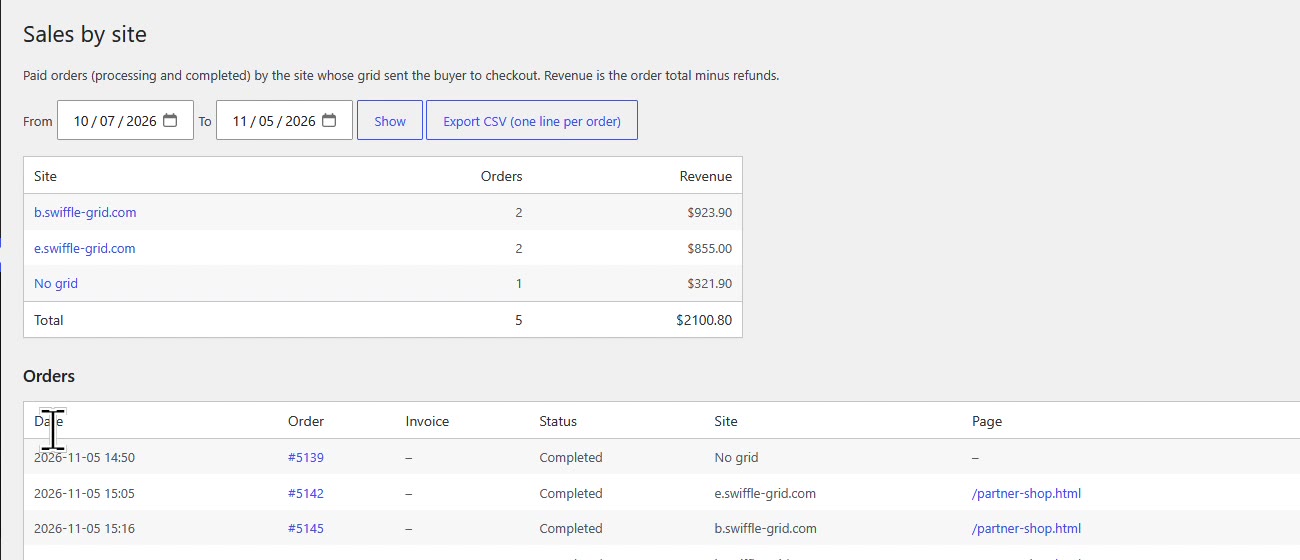
WooCommerce › Sales by site.
Step 6: See the orders of one site
Click a site to list its orders, with the date, the order number, the invoice number when there is one, and even the page where the buyer started.
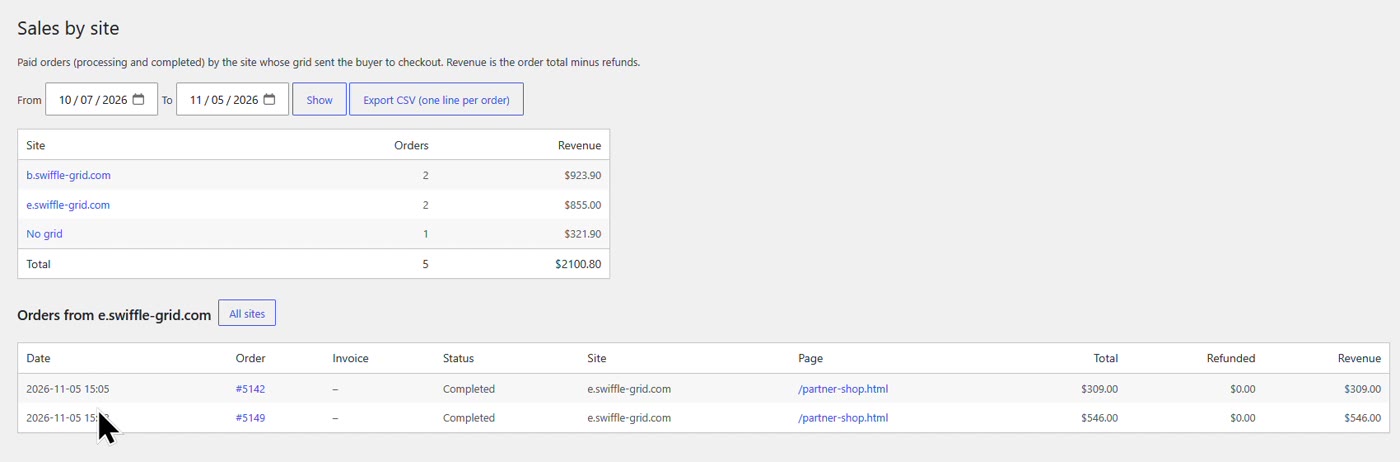
The orders of one partner site.
Step 7: Export to CSV
Click Export CSV (one line per order) to open the list in a spreadsheet, for your accounting or to pay your partners.
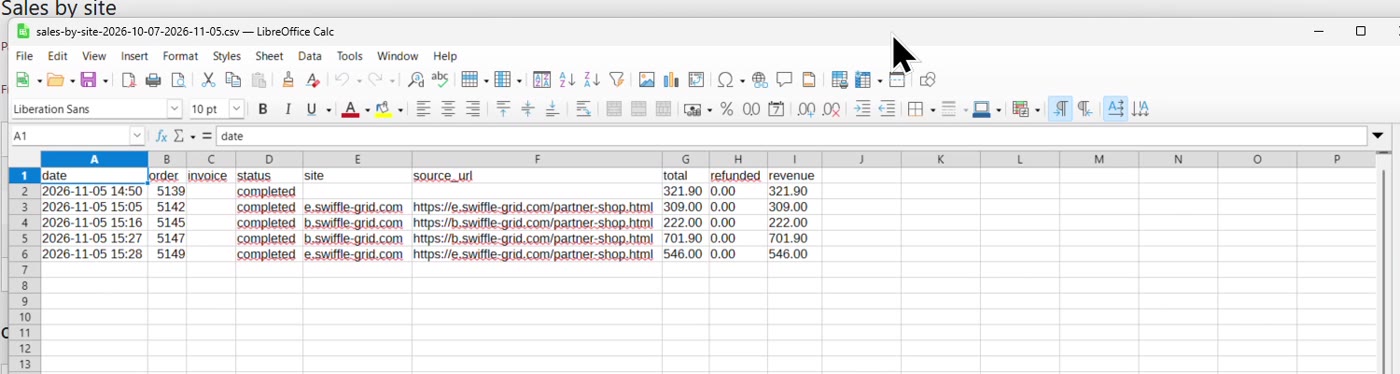
The CSV export, one line per order.
ℹ️ This is not a full affiliate plugin: there are no partner accounts, commissions or payouts. But you know exactly which partner site brought each order, and you can export it.
To show your products on another website first, see Embed WooCommerce Products on Another Website. To add search, sort and price filters to the grid, see WooCommerce Product Filter: Search, Sort and Price Filters Without Code. Plans and pricing: Swiffle Grid plans.
Thanks for reading. Check out our channel for more tutorials to help you succeed.